

Register SIMs
Once you receive your SIMs, the next step is to register them. When you register a new SIM or SIM batch, you can automatically activate the SIM and create connected devices using the default configuration.
The emnify REST API is an efficient approach for dealing with a large number of devices and registering SIM cards in bulk.
This guide uses the Postman API platform for example purposes. Each time you use the emnify REST API, you must authenticate in Postman.
For more information, see How to use the REST API via Postman on the emnify Developer Blog.
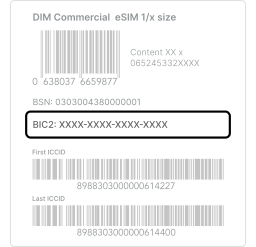
Locate the BIC
The SIM registration uses the batch identification code (BIC) printed on the SIM batch package. The 16-digit BIC is located on the packaging label and marked as BIC2.
Register SIMs via API
To update (activate, suspend, or delete) your SIMs, you must first register them via the emnify Portal using the BIC. For step-by-step instructions, see Register SIMs in the Portal documentation.
Alternatively, you can register one or multiple SIMs using the Validate SIM Batch by BIC API call.
To create a new request in Postman, click +New in the upper left corner. Name the request SIM Registration and add it to a new collection called SIMs.
Then follow these steps to set up your request:
Set the request URL as https://cdn.emnify.net/api/v1/sim_batch/bic/{bic}, replacing {bic} with your BIC.
Navigate to the Headers tab.
Insert Content-Type and Authorization as Keys and add the respective Values application/json and Bearer TOKEN.
Replace TOKEN with your auth_token and make sure there’s a non-breaking space between Bearer and the token value.
Go to the Body tab and select raw. Make sure the format is set to JSON. Then, set the SIM status to Activated to get them online immediately:
Keep in mind that a monthly cost is charged for each activated SIM card.
If you don’t plan on using the SIMs right away, set the SIM status to Issued:
A 200 OK response status indicates successful registration of the SIMs.
Next steps
After you register SIMs, you need to create a virtual representation of the device associated with the SIM. In the emnify REST API, this is called an endpoint. For more information, see Create endpoints.