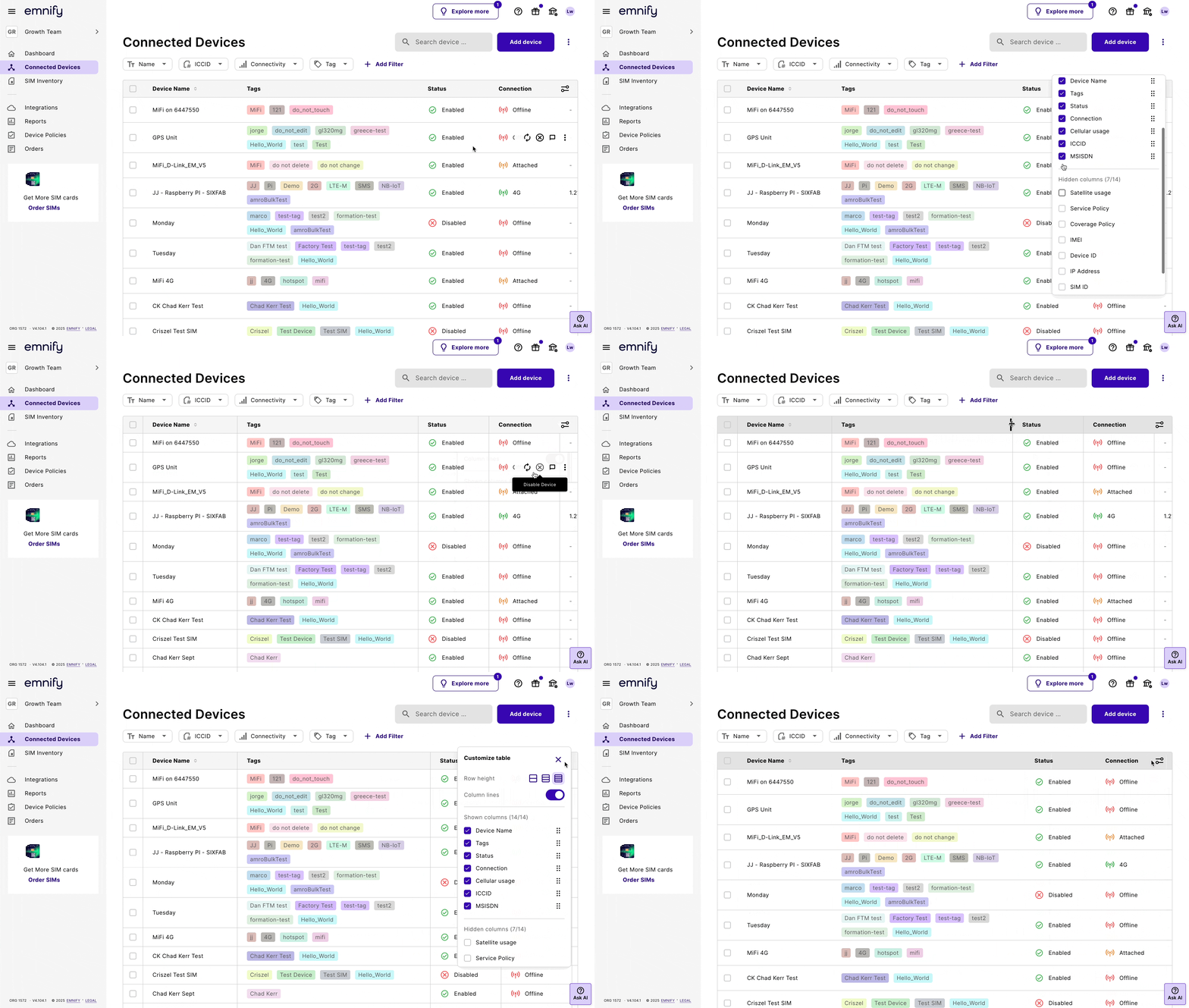
Customize table view
You can tailor the table to your specific workflow using Table settings.

The customizable table gives you full control over how your event data is displayed:
- Show or hide columns: Select which columns to include, such as event type or ICCID, to ensure the most relevant information is front and center.
- Reorder columns: Drag and drop columns to arrange them in the order that makes the most sense for your workflow.
- Resize columns: Adjust column widths to improve readability and layout efficiency.
- Persistent settings: Your customizations are automatically saved in your browser, so your view remains consistent across sessions (per browser and device).
- Responsive layout: The table adapts to different screen sizes, ensuring usability on desktops, tablets, and mobile devices.
- Reset to default: If you ever want to revert to the original layout, select Reset settings.
There are also additional display options:
- Row height: Choose between three different row heights to optimize your view for density or readability.
- Column lines:
Toggle vertical column lines on or off to adjust the visual clarity of the table.
- Quick copy: You can now highlight and copy numbers (like ICCIDs, IMEIs, etc.) directly from the table without needing special actions.
- Performance enhancements: The table uses lazy loading to improve performance when working with large datasets.