

Deploy the emnify Consumer eSIM Global on Jamf Pro
This guide explains how to deploy and activate the emnify Consumer eSIM Global using Jamf Pro Mobile Device Management (MDM). It includes enrolling Apple devices, ordering eSIM profiles, activating them remotely through Jamf Pro, and configuring the APN settings.
This process is tailored to enterprise environments using Apple devices with Jamf Pro and Apple Business Manager.
Step 1: Enroll devices in Jamf Pro
There are two supported methods for enrolling Apple devices into Jamf Pro for mass deployment:
- Automated Device Enrollment (ADE) via Apple Business Manager
Devices pre-registered in Apple Business Manager are automatically assigned to Jamf Pro during the initial setup.
This zero-touch method ensures that upon first power-on, the device contacts Jamf and configures itself. - Enrollment using Apple Configurator
Utilize the Apple Configurator (available on macOS) to manually enroll multiple iPads via USB.
This approach is efficient for large-scale configuration and doesn’t rely on Wi-Fi during initial setup.
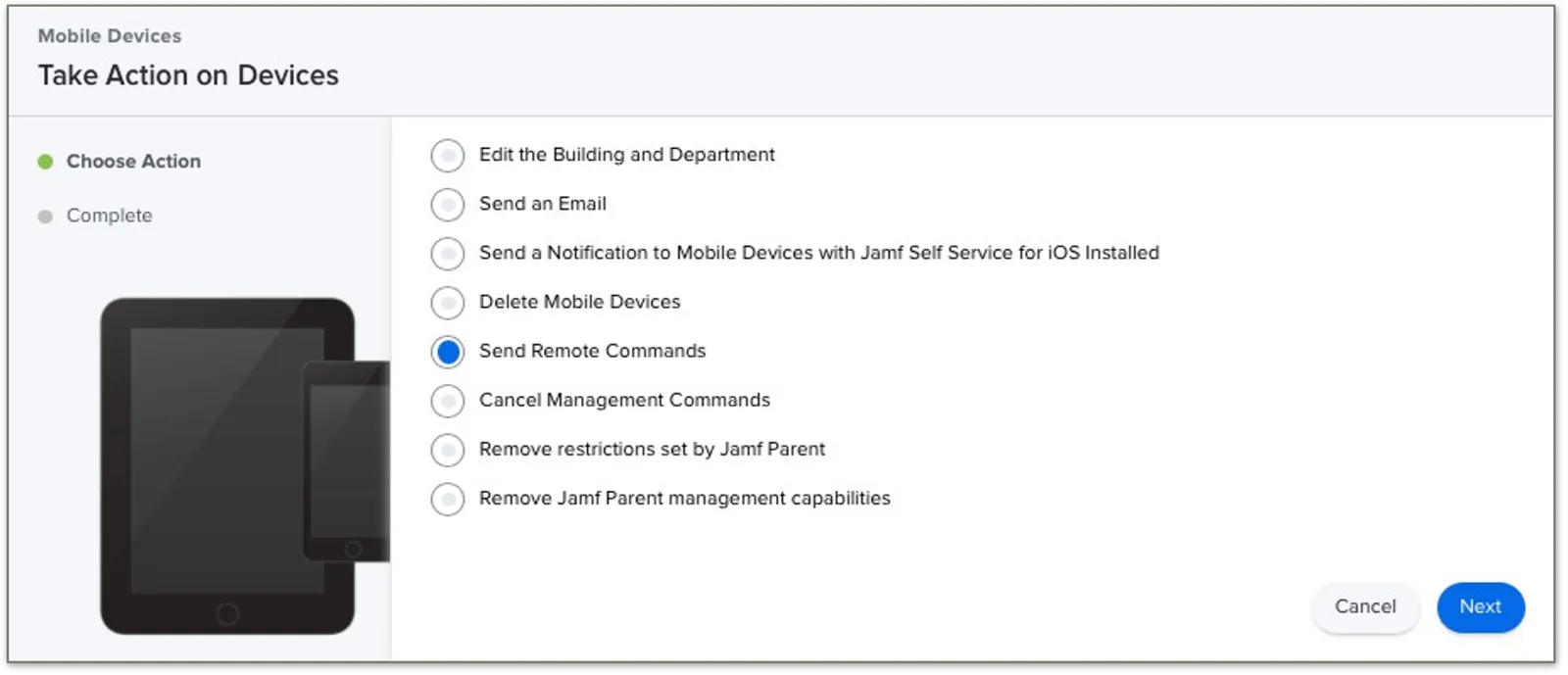
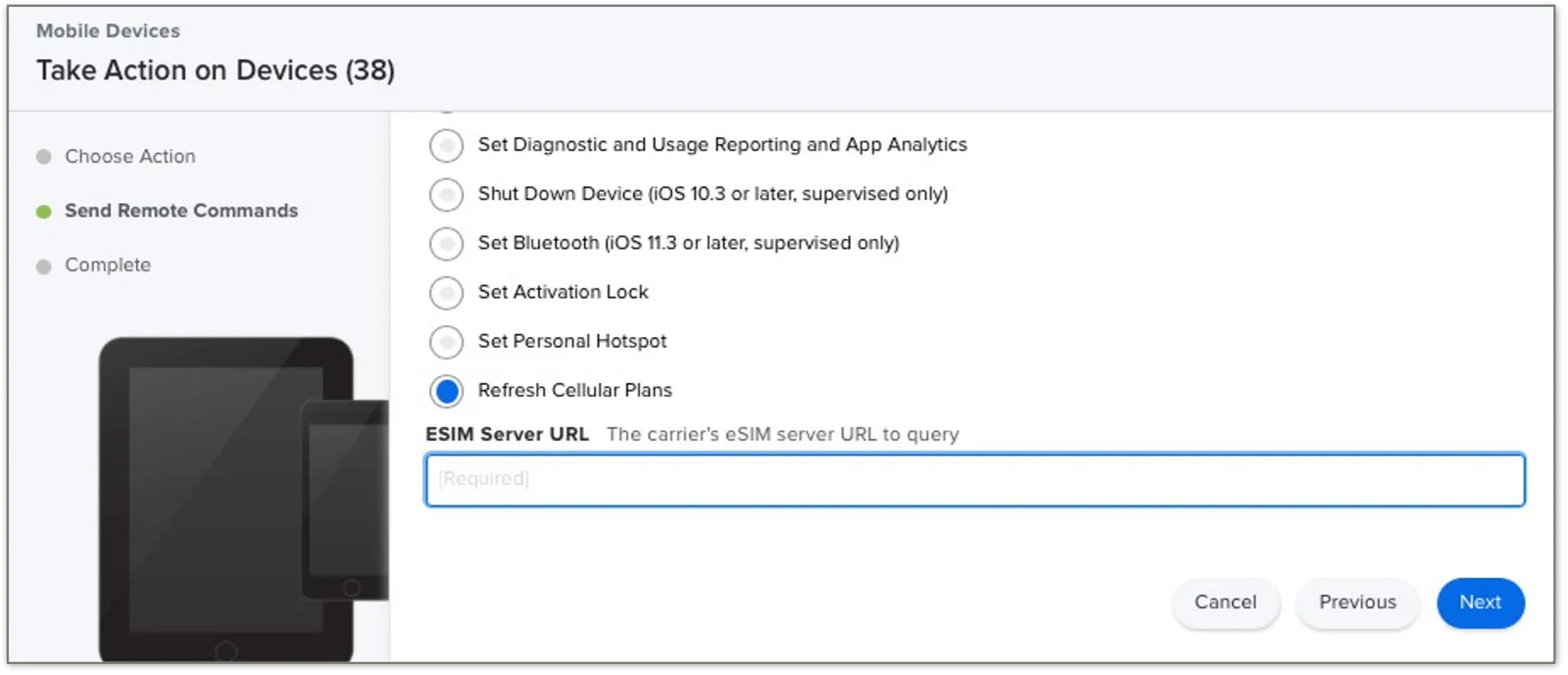
Once enrolled, Jamf Pro allows remote management including configuration profiles, apps, and commands like Reset cellular plan to trigger eSIM activation.
Some helpful resources:
- Apple Business Manager Guide
- Deploying iOS Devices Using Apple Configurator 2 and Jamf Pro
- Automated Device Enrollment Integration
Step 2: Order eSIM profiles
Order your eSIM profiles in the SIM Shop using the regular ordering of SIMs. Select the eSIM profile product and choose how many profiles you need.
emnify creates a device for each eSIM profile you order and assigns the profile to it. This happens for every eSIM profile order, whether the profile is provisioned on a Consumer (SGP.22) or Advanced (SGP.32) eUICC, and whichever installation method you choose.
Your eSIM profiles become available once the order status changes to Delivered.
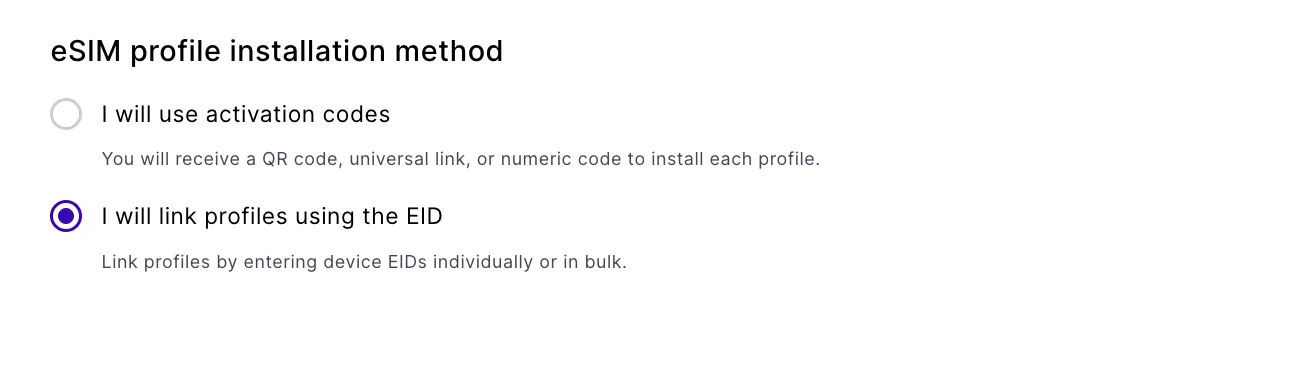
At checkout, choose an eSIM profile installation method. This choice determines how you get each profile onto a device, and what the order download contains.
- I will use activation codes: you receive a QR code, universal link, or numeric code to install each profile.
- I will link profiles using the EID: you link profiles by entering device EIDs individually or in bulk.
The order download follows this choice. With activation codes, the CSV contains the ICCID, activation code, and Apple Universal Link for each profile. With EID linking, the CSV contains the ICCID only. QR code images are never included in an order download. Retrieve them per device from the eSIM tab in Connected Devices.
For this guide, select I will link profiles using the EID.
Step 3: Assign EIDs to your eSIM profiles
Before your MDM can download profiles to devices, you need to assign each device’s EID to an eSIM profile in the emnify Portal. Export the EIDs of your enrolled devices from your MDM, then assign them one at a time or in bulk from a CSV file.
For the full procedure, see Assign EIDs to eSIM profiles.
After the emnify SM-DP+ processes the assignment, the profiles move to Ready to download. Your MDM can download only profiles in Ready to download status.
Step 4: Activate your eSIMs with Jamf Pro
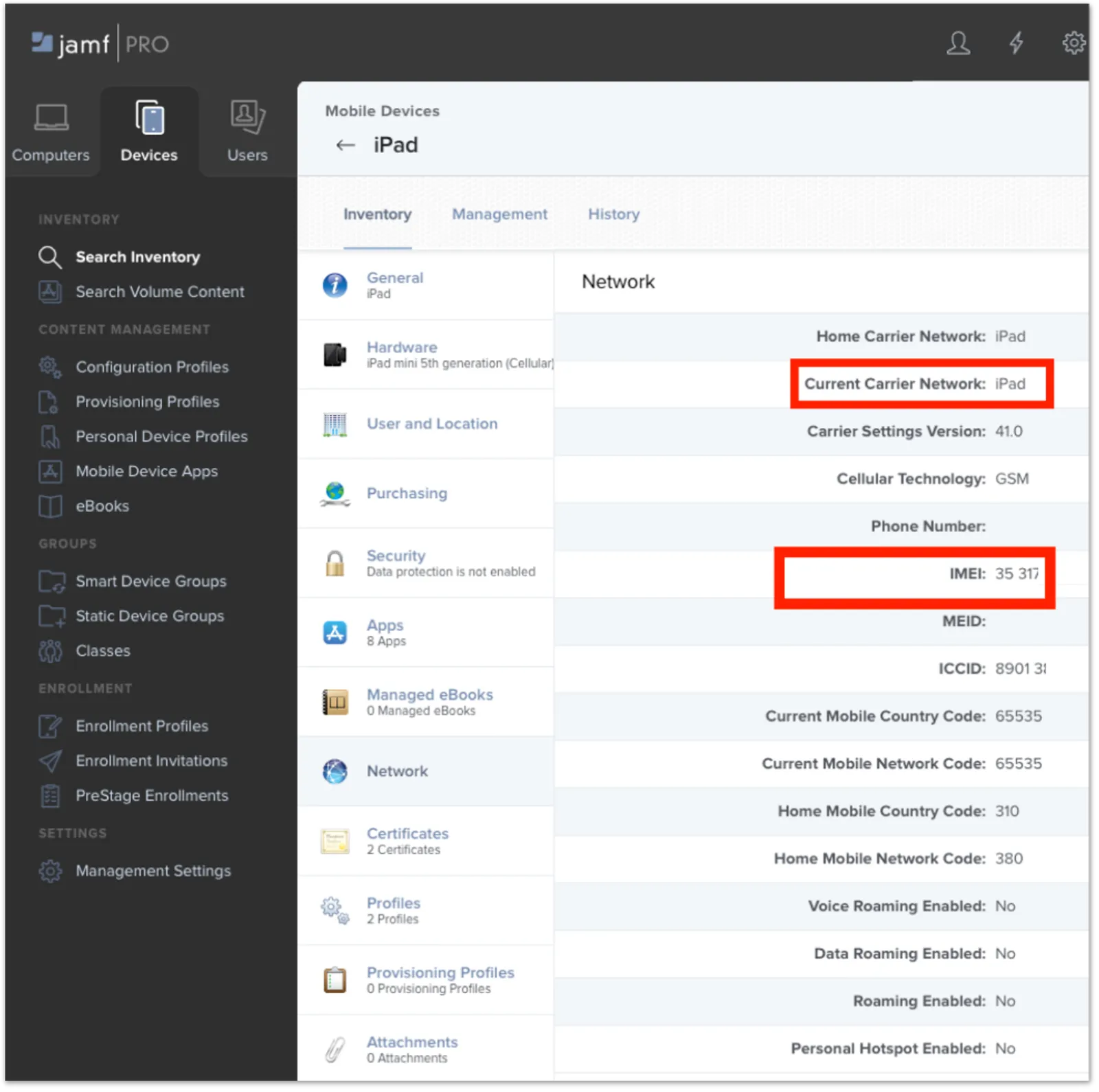
Verify the device’s network details
After enrolling the device:
Activate cellular data services
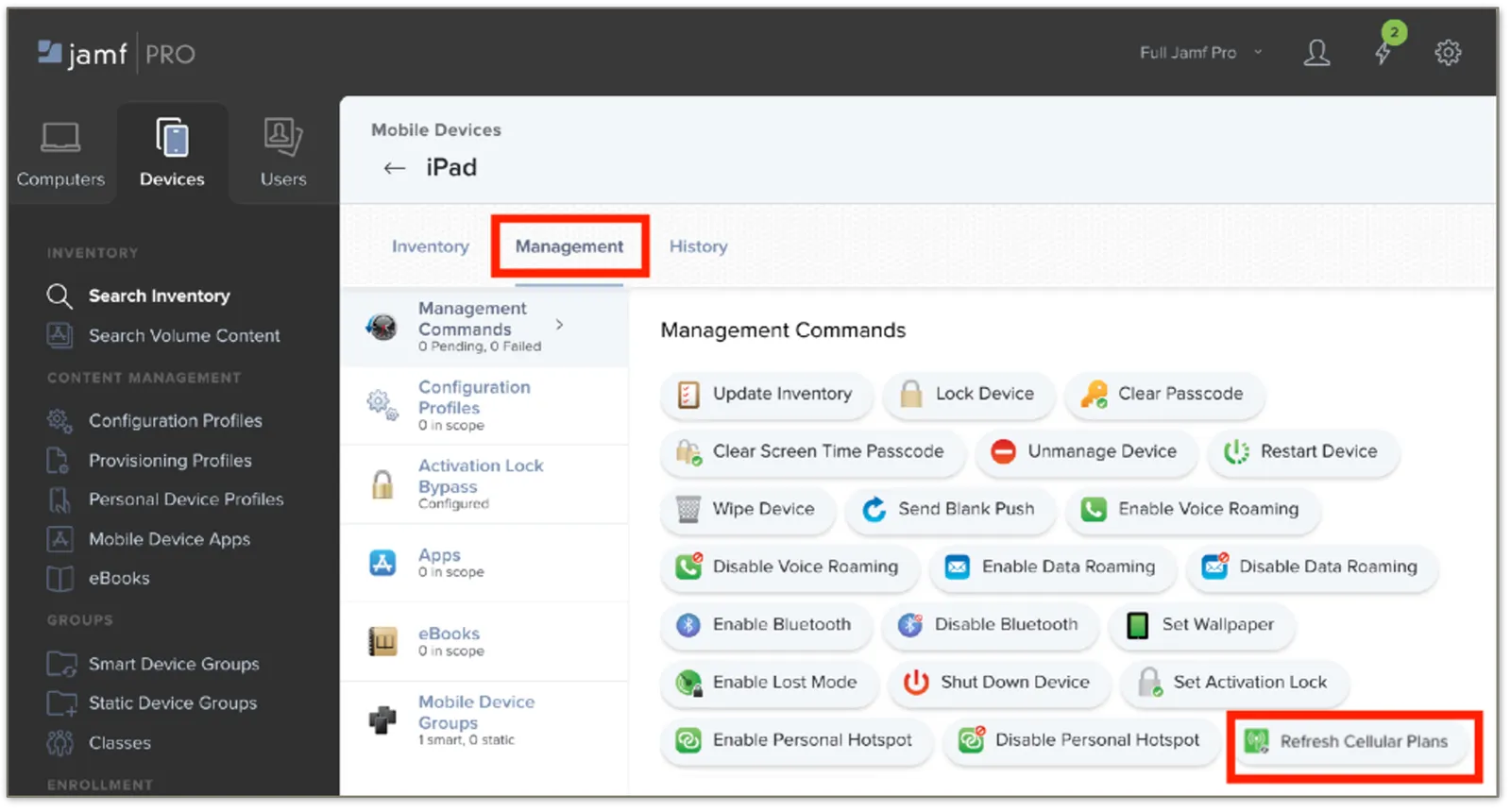
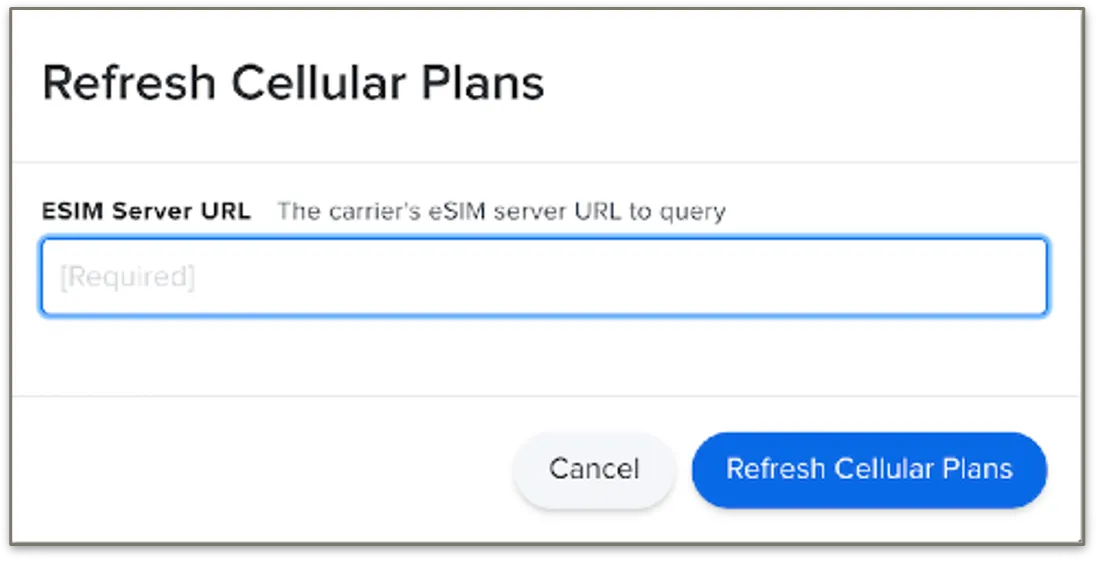
Upon successful activation, cellular connectivity is established, indicated by signal bars on the device.
Step 5: Identify inactive devices

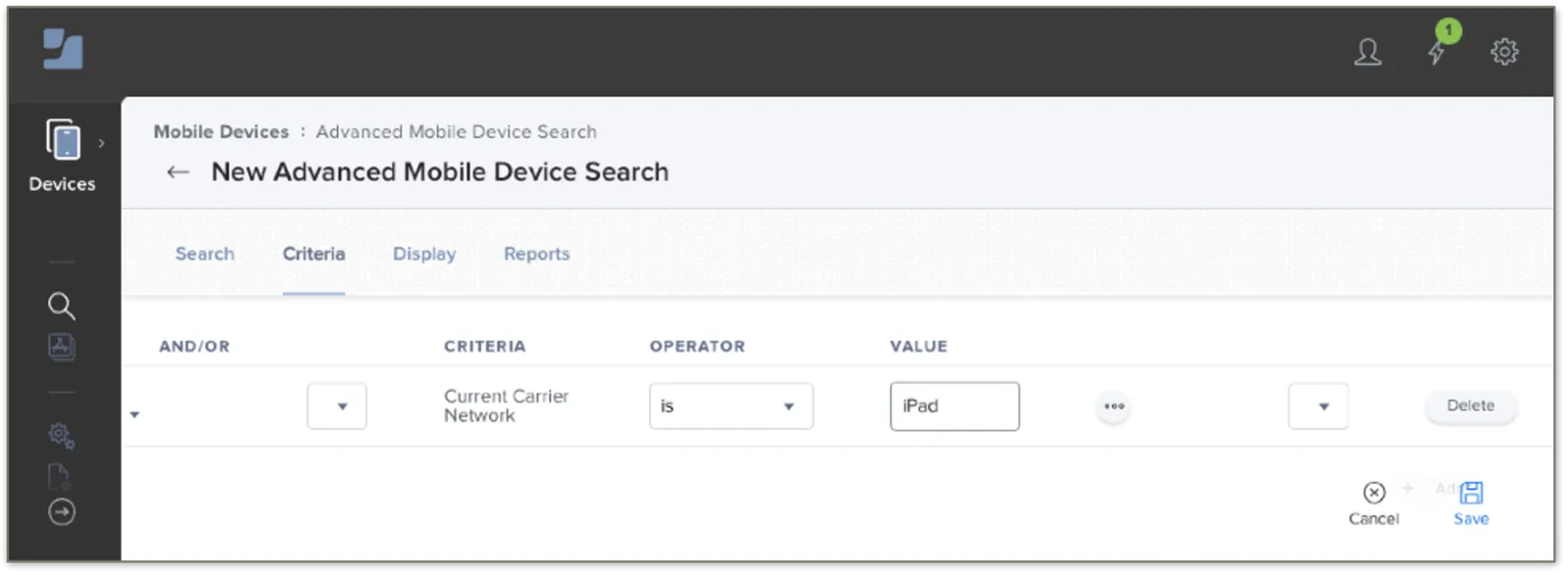
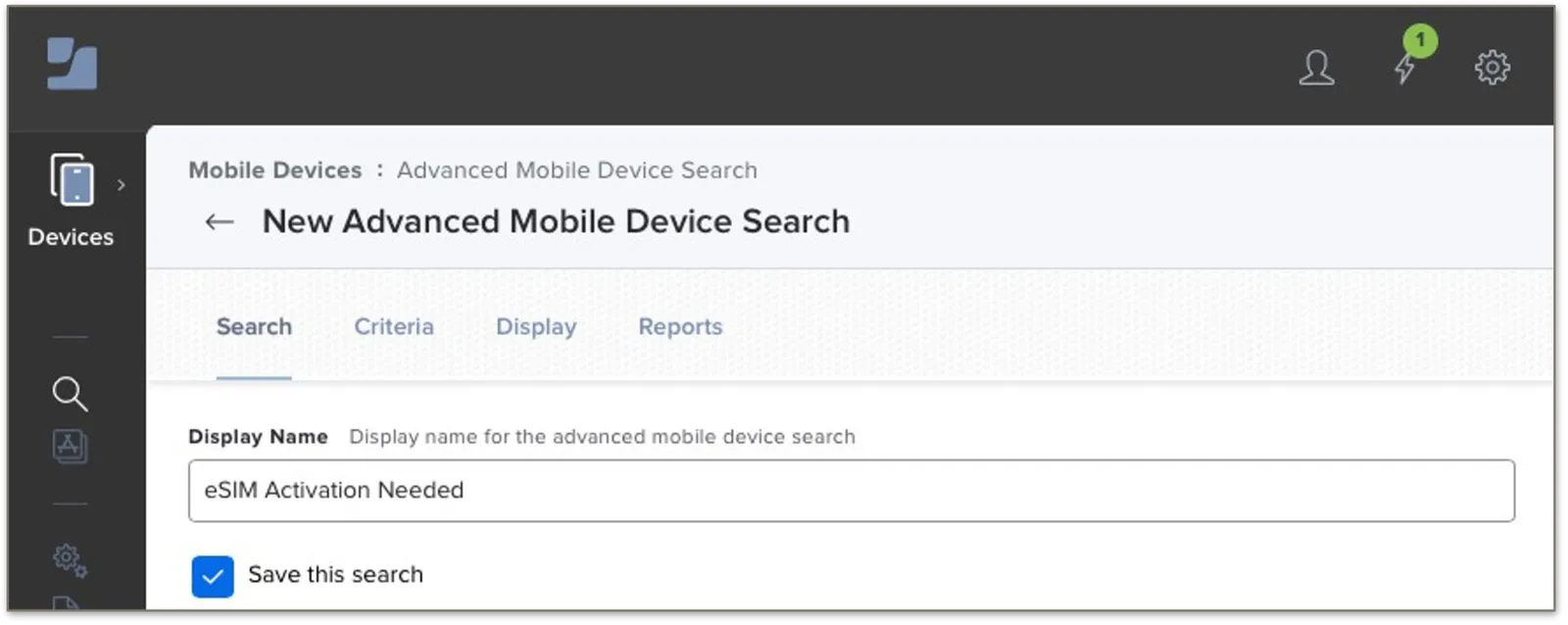
In the Criteria tab, filter for devices where the Current Network Carrier field is set to iPad. This indicates inactive devices.
Step 6: Activate cell plans in bulk
Step 7: Configure the APN on the device
After activation, the Access Point Name (APN) must be set to em.
You can configure the APN:
- Manually on the device, or
- Remotely via Jamf