

Filter table contents
Filters allow you to query table values based on one or more properties (for example, tags assigned to a device or the time period of an event).
To remove a filter or value, click the corresponding X.
Filters can be combined or used together with the search bar.
Filtered values are saved in the URL as a query parameter (for example, after filtering for devices named Alexa, the URL includes &name=Alexa at the end).
Your selected filters remain active when you open the details page. However, the filters reset if you go to another page in the Portal.
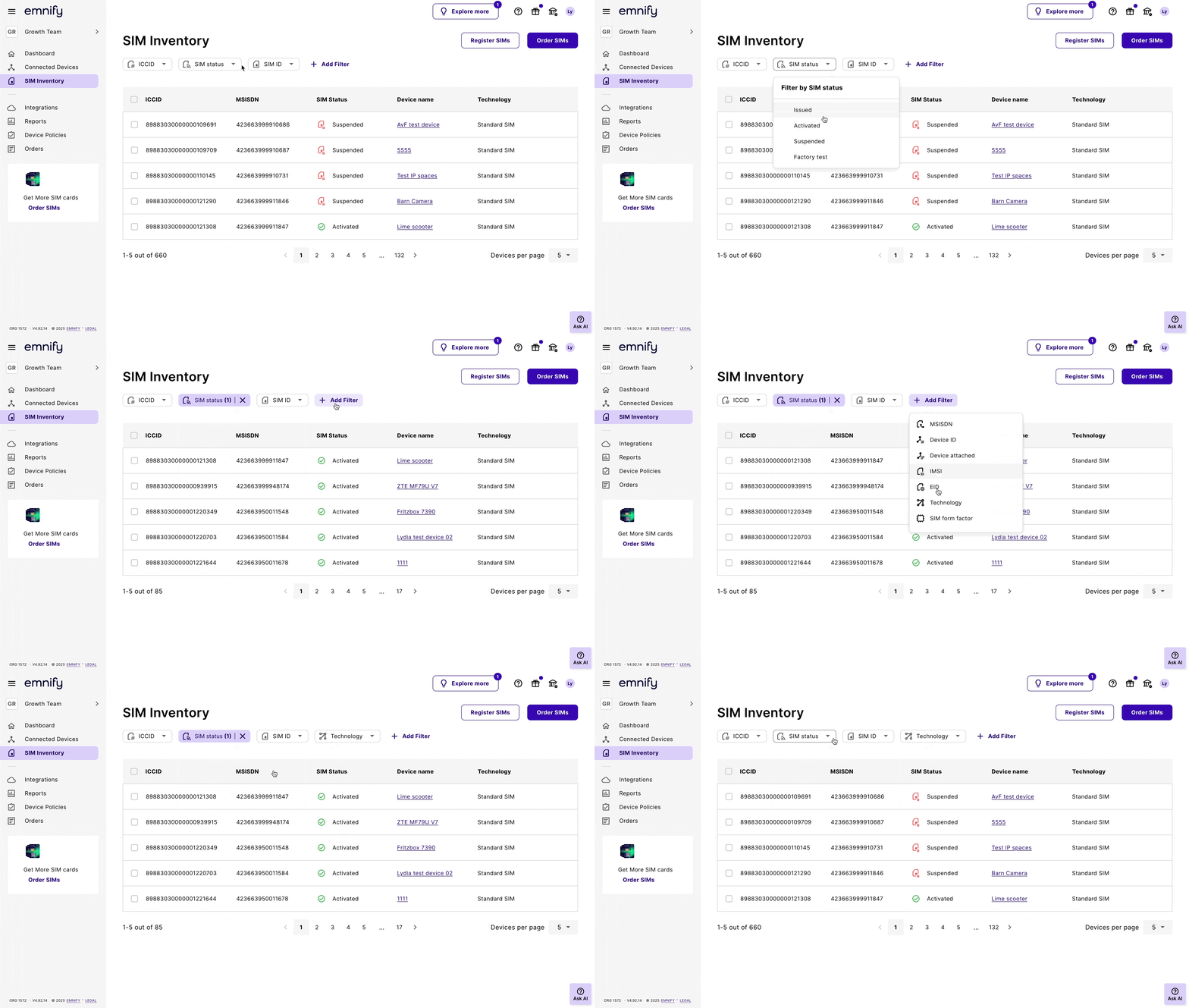
Available filters
Connected devices
Status filter
Filtering by status returns devices based on a combination of the device status and the status of the attached SIM.
SIM inventory
Events log
Flow Logs Beta
Filter the Flow Logs table on a device’s Diagnostics tab.
Workspace users
Exact match toggle
For some filters, an Exact match toggle is available:
- On: Shows only results that exactly match the full value you enter.
- Off: Allows partial and wildcard matches. Type any part of the value, and the table shows all items containing it.
Additional behavior:
- Wildcard support is only available when less than five values is entered.
- If more values are provided, the Exact match toggle automatically switches on and wildcard matching is disabled.
- The toggle state is preserved when importing a CSV file.
Turn on Exact match for precise lookups, or keep it off to browse similar results.
Wildcard support
Wildcard matching lets you filter based on partial matches.
You can also use character matching with an asterisk *.
This feature is only available when less than five values are entered.
If more values are provided, the filter automatically switches to Exact match, and wildcard filtering is disabled.
This is especially useful if a term has multiple spellings or you’re unsure of the exact value. For example:
- Similar names:
If you have two devices named
Phase modemandMy iPhone, filtering forphorph*eshows both devices in the results. - Localized spelling:
Filtering names using
organi*ationshows all results regardless of whether the device name uses American (organization) or British (organisation) spelling. - Phone numbers with a specific area code:
Filtering the MSISDN value for
55shows all SIMs with phone numbers that include55, but filtering for55*shows only SIMs with phone numbers that start with55(Brazil). - Check digit uncertainty:
Filter ICCID values with
*at the end (for example,8988303000008013931*) when you’re unsure of its Luhn checksum digit. - Various top-level domains:
Filtering emails using
@example.*shows all results regardless of whether the email address ends inexample.comorexample.org.
Upload a CSV file
You can use a comma-separated values (CSV) file to apply multiple values to any filter that accepts string values.
This feature is especially useful if you have dozens of values (for example, 100 ICCIDs). Importing values through a CSV file lets you skip the tedious task of entering each value individually.
To upload a CSV file, follow these steps:
Each value is parsed, and the table shows any items with the corresponding values.
Uploading a CSV file won’t overwrite any existing filters. To add or remove any values, select the filter again.
Please note the following limits:
- You can only upload one
.csvor.txtfile at a time - Maximum rows: 10,000
- Maximum row length: 100 characters
- The CSV file size can’t exceed 400 KB in total
You can download and view a sample CSV file to use as a template. Choose the filter, select Import a CSV file, then click Download example of right format CSV.
Enter a list of values
You can also enter a list of values to filter for multiple ones simultaneously. This works for any property that accepts string values.
Lists must be plain text with every value on its own line. Write the values exactly as they appear in the Portal.
To demonstrate, if you enter the following in the Name filter and press the Enter key:
Each value is parsed, and the table shows any device names with the test, v1, or beta.