For AI agents: a documentation index is available at the root level at /llms.txt and /llms-full.txt. Append /llms.txt to any URL for a page-level index, or .md for the markdown version of any page.
Request featuresContact support
User guideHow-to guides
    • Overview
  • Consumer eSIM Global
    • Integrate with Omnissa
    • Integrate with Microsoft Intune
    • Integrate with Jamf Pro
  • Device management
    • Block operators
    • Manage device tags
    • Release SIMs from devices
    • Rename devices in bulk
    • Use CSV files for bulk actions
  • Device policies
    • Add IP address spaces
    • Assign devices to a policy
    • Update existing device policies
  • emnify Portal tables
    • Customize table view
    • Filter table contents
    • Search through tables
    • Manage automations
  • Satellite
    • Manage satellite connectivity
    • Set up a satellite SIM
    • Set up multi-factor authentication
  • Single-sign on
    • Microsoft Active Directory
    • OpenID Connect (OIDC)
    • Google Cloud Platform
    • Switch providers
    • Troubleshooting
  • SMS
    • Send SMS via the emnify Portal
    • Set up a Zapier SMS integration
    • Use the emnify SMS Web App
  • Workspaces
    • Create a new Workspace
    • Link existing Workspaces
    • Manage Workspace users
    • Switch between Workspaces
    • Transfer SIMs
    • Update your company details
    • Upgrade your Trial plan
    • View centralized reports
LogoLogo
Request featuresContact support
Workspaces

Switch between Workspaces

Was this page helpful?

Last updated February 28, 2024

Previous

Manage Workspace users

Next

Transfer SIMs between Workspaces

Built with

This guide shows you how to switch between your linked Workspaces via the Workspace switcher in the emnify Portal.

1

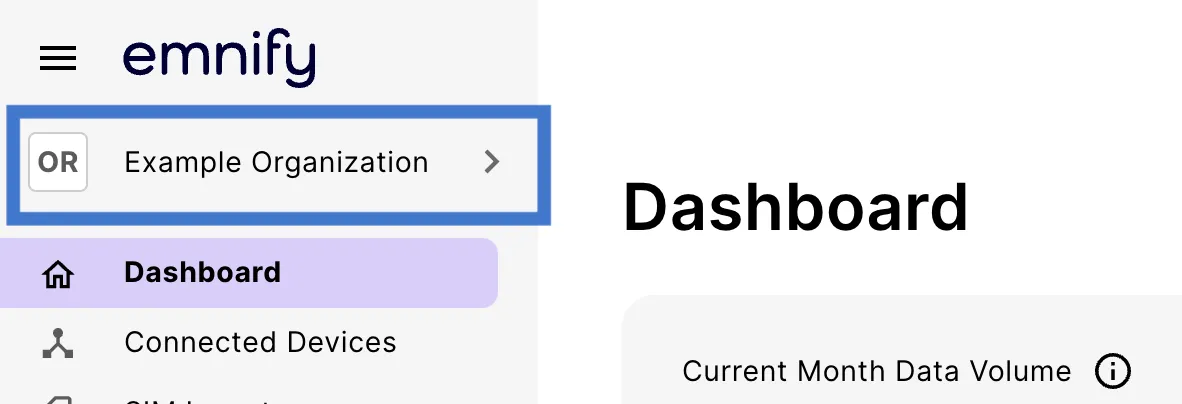
Log in to your emnify account. You should see your Workspace name at the top of the primary sidebar.
2

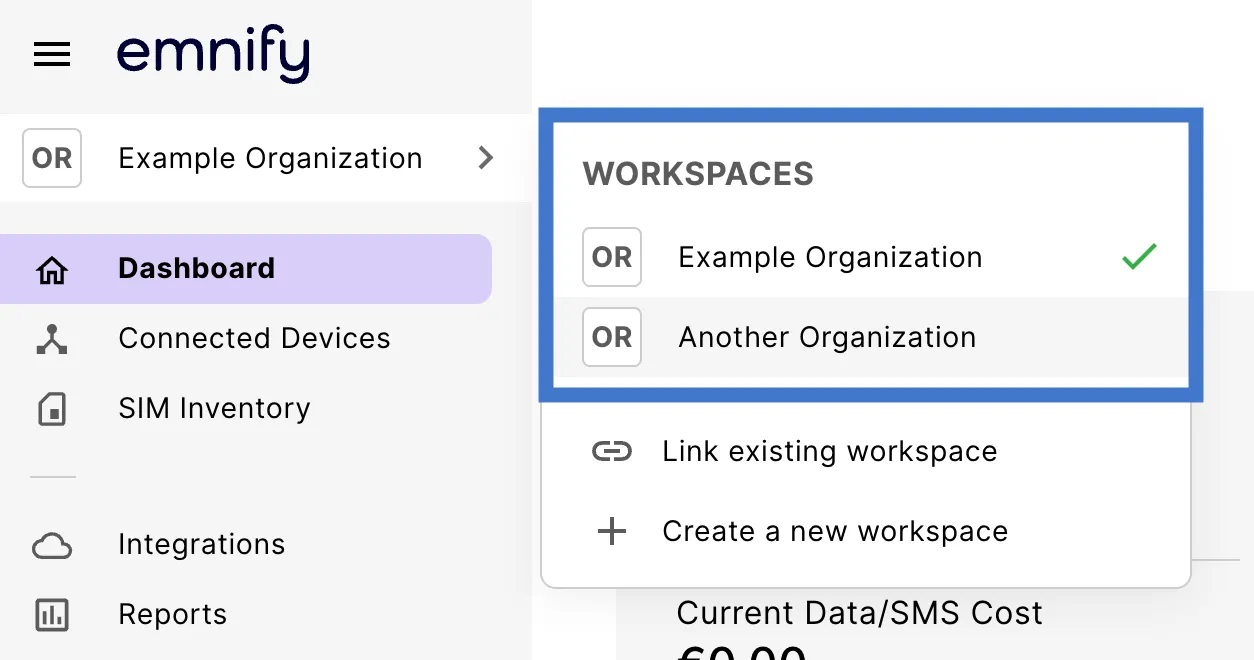
Click your Workspace name (or the corresponding icons) to reveal the Workspaces modal. This displays a list of all the linked Workspaces, as well as Link existing Workspace and Create a new Workspace options.

3

Navigate to another Workspace by selecting that name.

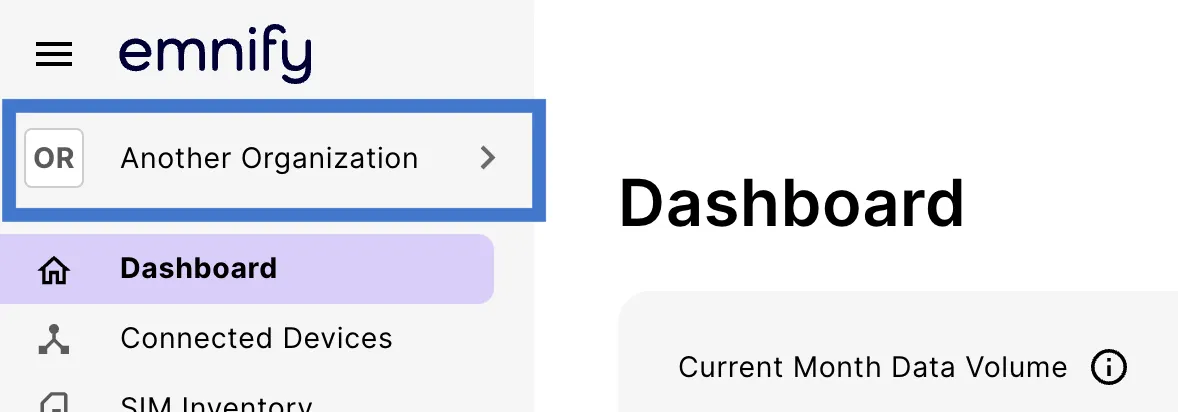
The following example starts from the main Example Organization Workspace and selects the Another Organization Workspace.

Now you should be in another Workspace.