

Assign devices to a policy
Device policies only become useful after you start assigning devices to them. You can assign single or multiple devices to a policy in the emnify Portal.
Develop a strategy for grouping your devices according to specific use cases, deployment regions, product lines, or services. Choose policy names and device tags related to these criteria. This helps with selections when performing bulk assignments.
Devices don’t automatically reset if you change the service or coverage policy. Due to caching, it can also take up to 24 hours before changes are applied to a device.
Be sure to reset its connectivity for the change to take effect sooner.
Single device assignment
Navigate to Connected Devices.
You should see a real-time notification confirming the change.
Bulk assignments
Navigate to Connected Devices.
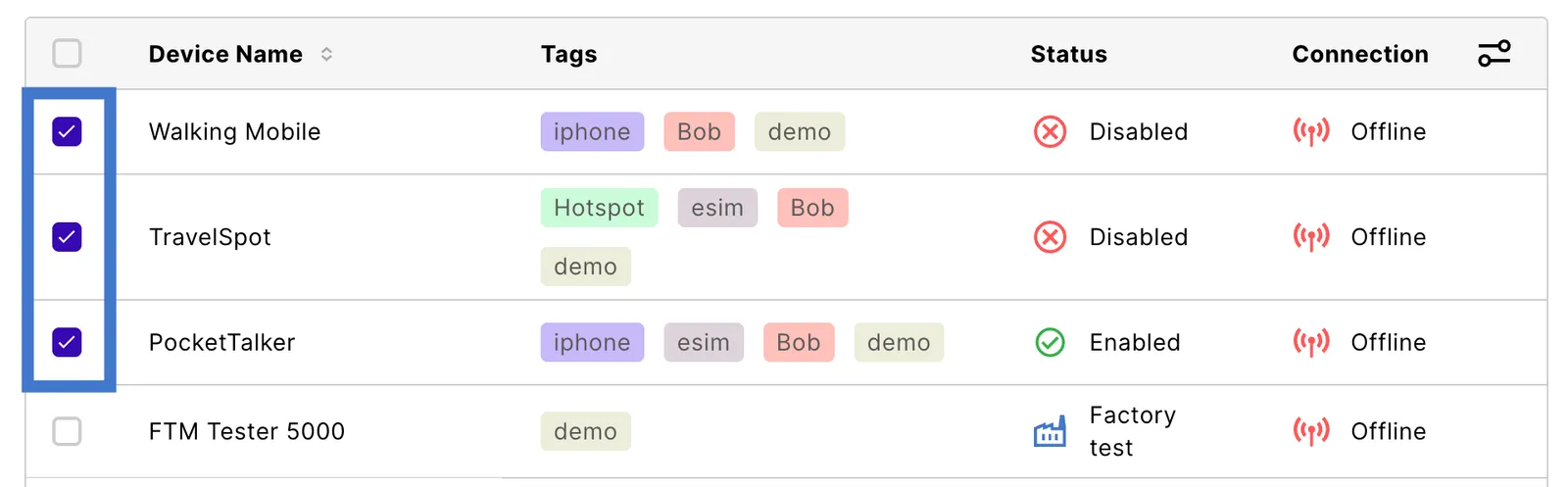
Search for the devices you wish to assign to a policy and select the checkbox next to every relevant device.
You can filter by tag or any other property to show only the devices to be assigned. If the filtered list looks good, select the top checkbox in the table heading to select them all.
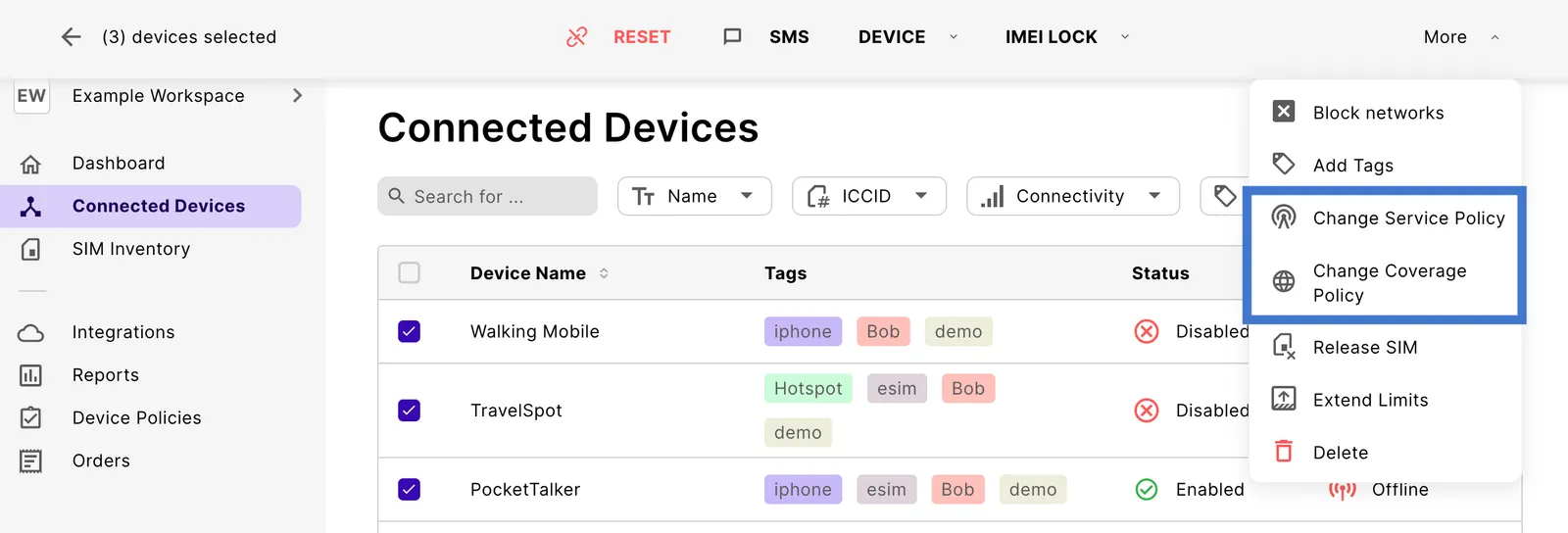
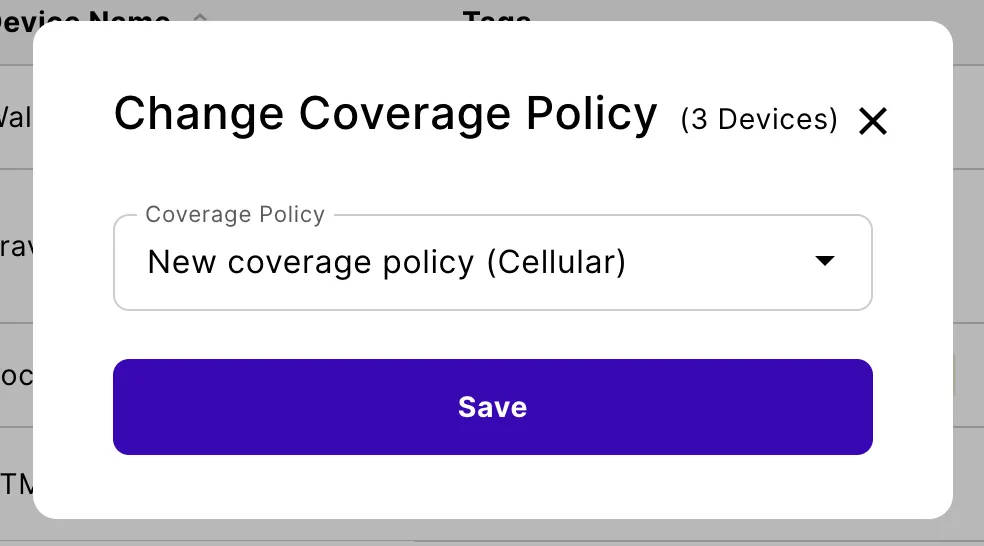
The devices you selected are assigned to their new policy, and you should see a real-time notification confirming the change.
Next steps
After you’ve created and assigned policies, you can also update existing policies in the emnify Portal. For more information, see Update existing device policies.