

Use CSV files for bulk actions
This guide provides detailed instructions on how to create, edit, and use comma-separated values (CSV) files compatible with the emnify Portal. It also addresses common issues and their resolutions.
CSV files drive several bulk actions. This page covers the formatting rules and the troubleshooting steps for all of them. The file contents and the limits differ by action:
- Assign EIDs to eSIM profiles takes one EID per line.
- Rename devices in bulk takes two columns, the ICCID and the new device name.
What is a CSV file?
Comma-separated values (CSV) is a file format used to store tabular data, such as a spreadsheet or database. Each row in a CSV file corresponds to a record, and columns are separated by commas and semicolons.
Types of CSV files accepted by emnify
The emnify Portal accepts CSV files with standard comma (,) or semicolon (;) separation.
Ensure the file:
- Uses UTF-8 encoding.
- Avoids extra formatting (for example, merged cells or text styling).
Get a CSV file with device ICCIDs
To rename devices in bulk you need a CSV file with the integrated circuit card identifiers (ICCIDs) and new device names. You can retrieve a CSV file with device ICCIDs from Reports in the emnify Portal.
Navigate to Reports.
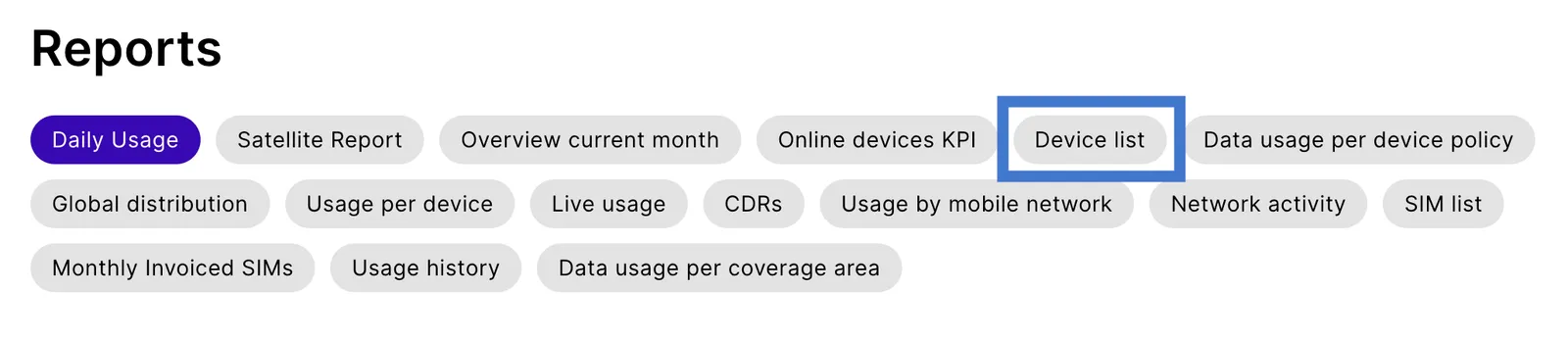
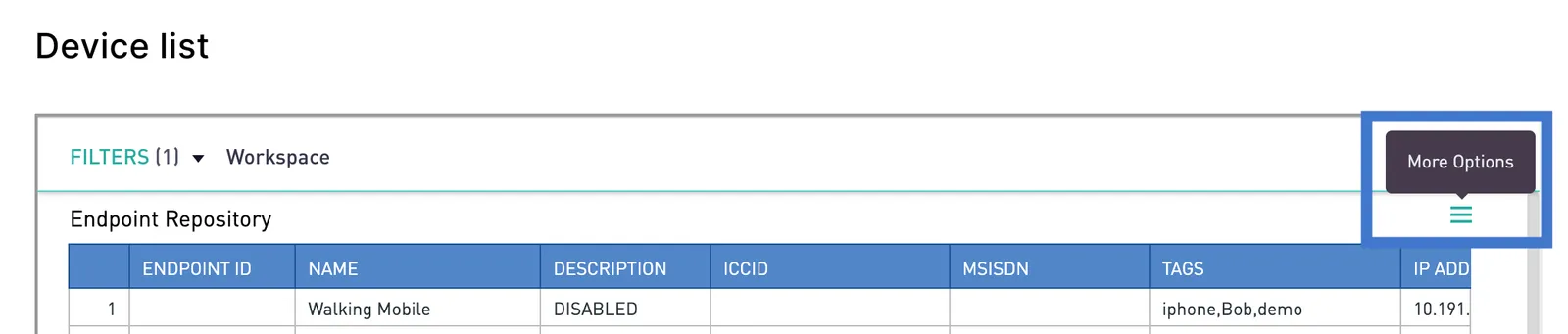
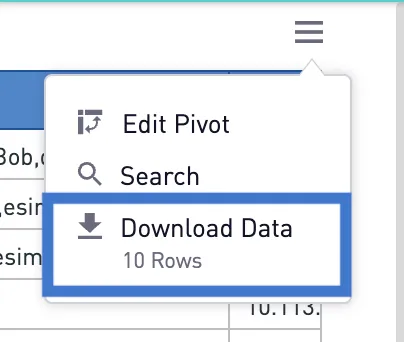
You can download an example CSV file from the emnify Portal to see the correct format. Follow the upload CSV steps in the Rename devices in bulk guide.
Applications for working with CSV files
There are many options for working with CSV files, including Microsoft Excel, Google Sheets, Apple Numbers, LibreOffice Calc, and plain text editors.
To avoid issues on any application, don’t convert the CSV file or change its formatting. Some tools automatically reformat data, particularly ICCIDs, leading to errors.
Microsoft Excel
Microsoft Excel is a widely used spreadsheet application that can cause issues with CSV files depending on your operating system.
Open CSV files on macOS
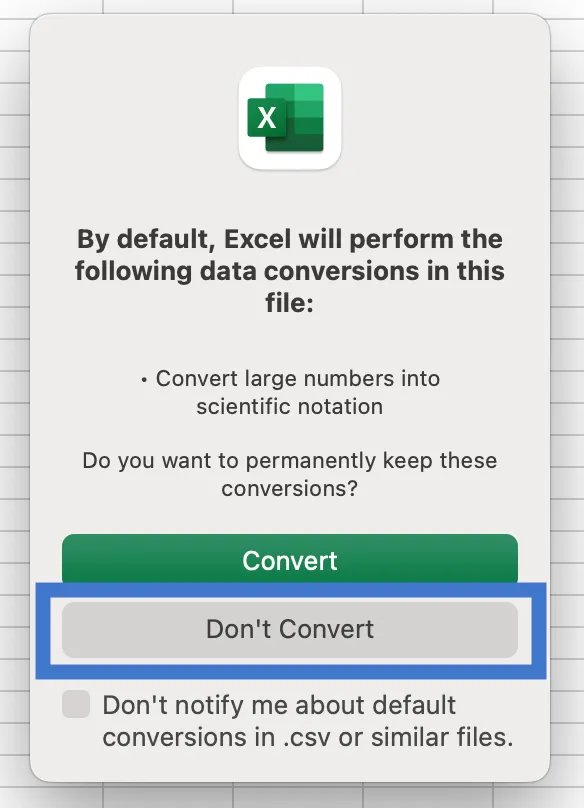
Microsoft Excel on macOS tends to open CSV files with all data in a single column. To prevent data conversion errors and ICCIDs from being altered, open the file and choose Don’t Convert when prompted.
Open CSV files on Windows 10
Microsoft Excel on Windows often converts ICCIDs into a scientific format (for example, 8.91234E+18) with no way to convert it back.
To avoid this, try the following:
Edit CSV files in Microsoft Excel
For bulk device renaming, you need two columns in your CSV file:
- ICCID: The unique identifier for each device (maximum length: 22 characters)
- Device Name: The new name you want to assign to each device (maximum length: 45 characters)
Other format requirements include:
- Maximum file size: 400 KB
- Maximum rows: 2000
- Naming conventions: Device names can’t contain commas
,or semicolons;as those are used as delimiters in the CSV file.
To edit a CSV file you downloaded from the emnify Portal:
Save CSV files in Microsoft Excel
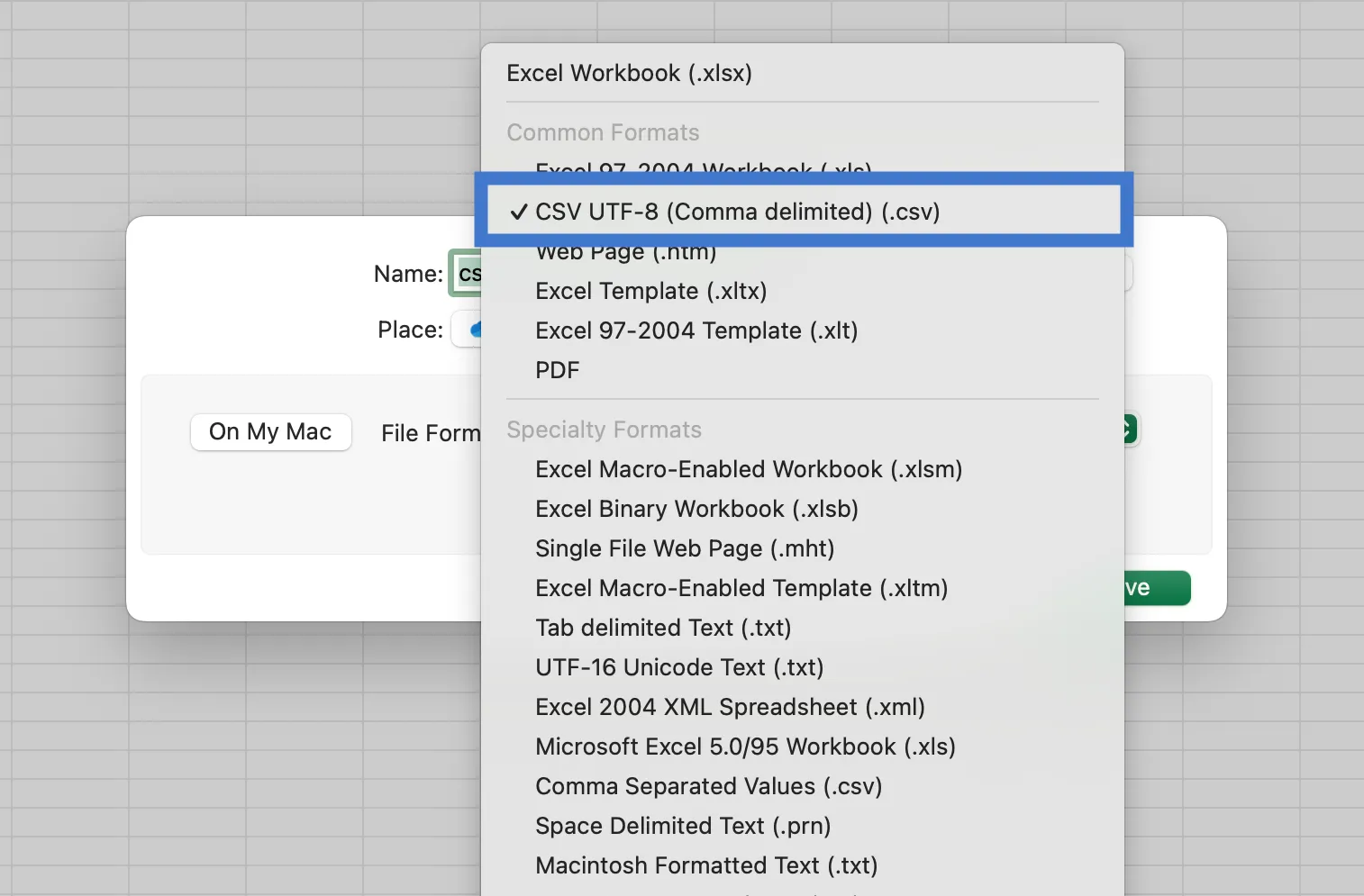
After editing the CSV file, save it correctly to avoid issues during the upload process. Ensure the file:
- Uses commas (
,) or semicolons (;) as delimiters. - Is saved in UTF-8 encoding.
- Doesn’t contain extra formatting or unnecessary metadata.
To save a CSV file so it’s compatible with the emnify Portal:
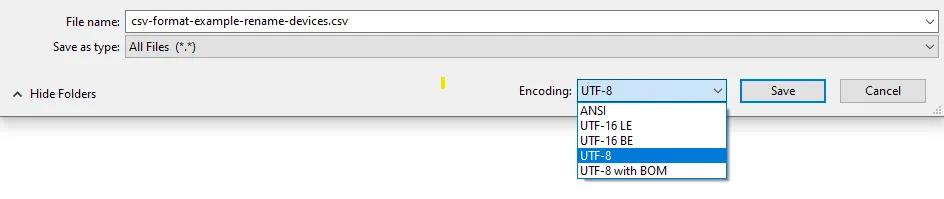
Microsoft Excel on Windows often saves CSV files with ANSI encoding by default. If the file saves in ANSI encoding, re-open it in Notepad and save it with UTF-8 encoding:
Select File > Save as… > In the dialog, add the .csv extension to the filename then choose All Files for Save as type and UTF-8 for Encoding > Save.
Google Sheets
Google Sheets is a popular tool for working with CSV files and works well with files downloaded from the emnify Portal.
Open CSV files in Google Sheets
Edit CSV files in Google Sheets
For bulk device renaming, you need two columns in your CSV file:
- ICCID: The unique identifier for each device (maximum length: 22 characters)
- Device Name: The new name you want to assign to each device (maximum length: 45 characters)
Other format requirements include:
- Maximum file size: 400 KB
- Maximum rows: 2000
- Naming conventions: Device names can’t contain commas
,or semicolons;as those are used as delimiters in the CSV file.
To edit a CSV file you downloaded from the emnify Portal:
Save CSV files in Google Sheets
After editing the CSV file, save it correctly to avoid issues during the upload process. Ensure the file:
- Uses commas (
,) or semicolons (;) as delimiters. - Is saved in UTF-8 encoding.
- Doesn’t contain extra formatting or unnecessary metadata.
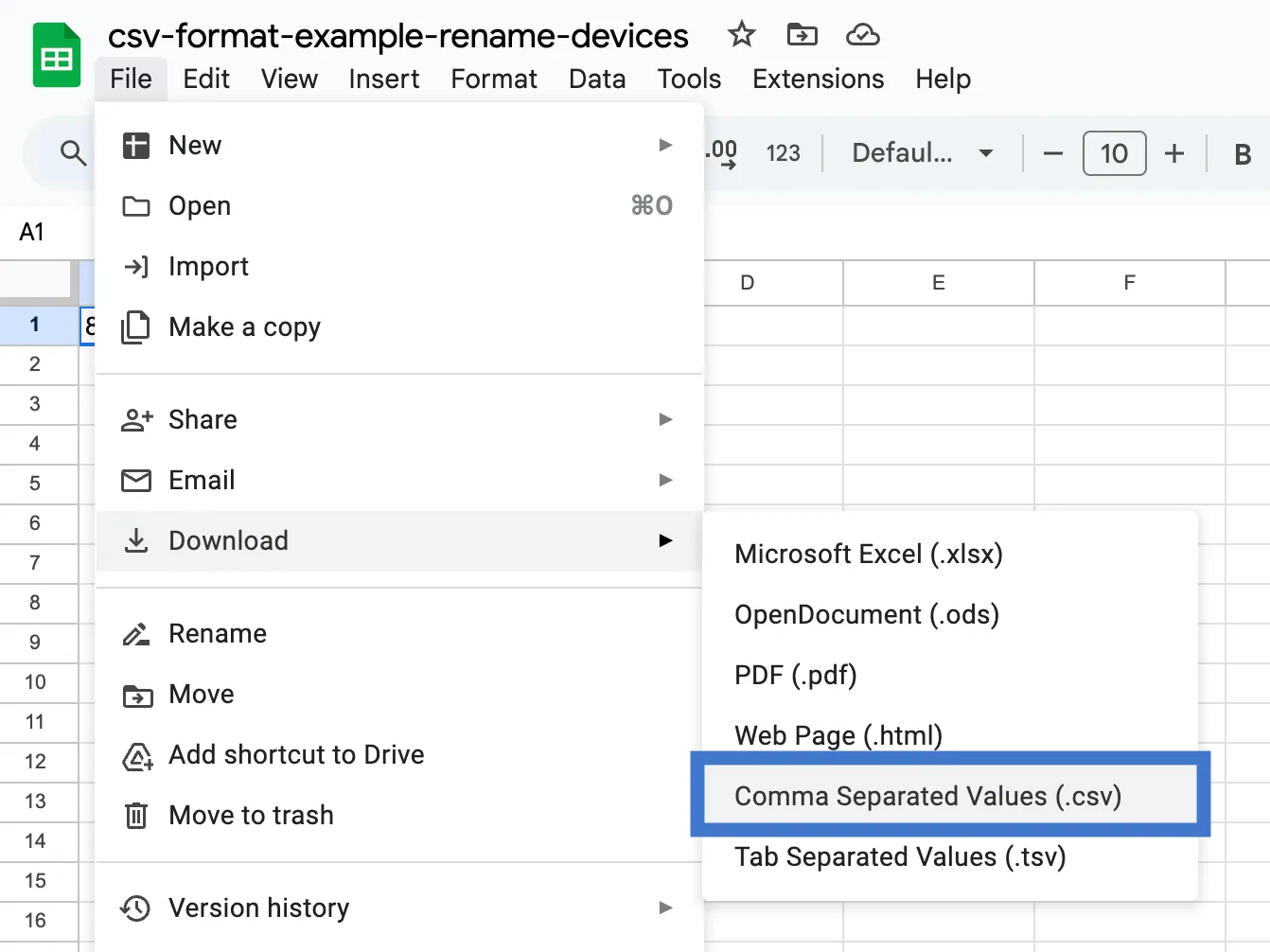
To save a CSV file so it’s compatible with the emnify Portal:
Select File > Download > Comma-separated values (.csv).
Apple Numbers
Apple Numbers is a spreadsheet application for macOS. It’s compatible with CSV files from the emnify Portal.
When you edit and save CSV files downloaded from the emnify Portal in Numbers, it changes the delimiter from a comma (,) to a semicolon (;).
Edit CSV files in Apple Numbers
For bulk device renaming, you need two columns in your CSV file:
- ICCID: The unique identifier for each device (maximum length: 22 characters)
- Device Name: The new name you want to assign to each device (maximum length: 45 characters)
Other format requirements include:
- Maximum file size: 400 KB
- Maximum rows: 2000
- Naming conventions: Device names can’t contain commas
,or semicolons;as those are used as delimiters in the CSV file.
To edit a CSV file you downloaded from the emnify Portal:
Save CSV files in Apple Numbers
After editing the CSV file, save it correctly to avoid issues during the upload process. Ensure the file:
- Uses commas (
,) or semicolons (;) as delimiters. - Is saved in UTF-8 encoding.
- Doesn’t contain extra formatting or unnecessary metadata.
To save a CSV file so it’s compatible with the emnify Portal:
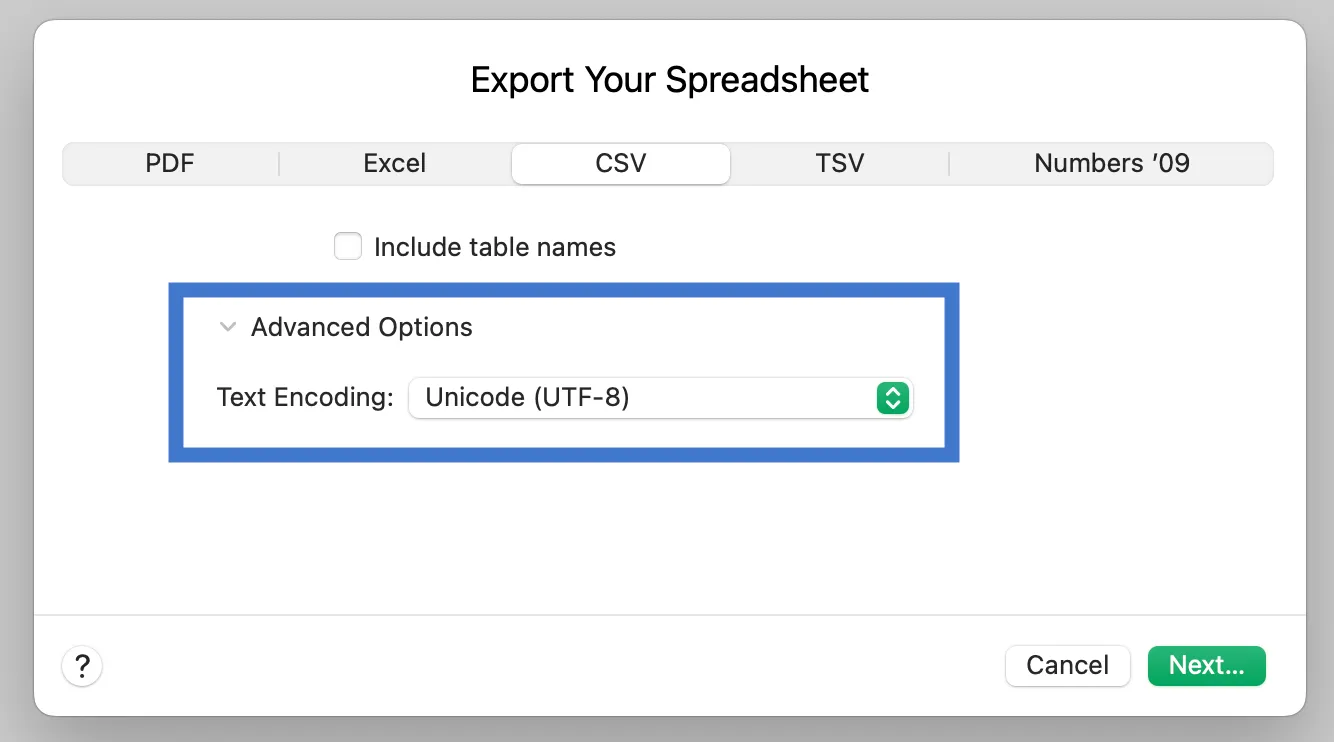
The exported CSV file has semicolons (;) as delimiters instead of commas.
LibreOffice Calc
LibreOffice Calc is a free and open source spreadsheet application. It’s an alternative to Microsoft Excel and commonly used on Linux systems.
Overall, LibreOffice Calc is compatible with CSV files from the emnify Portal as long as you change the ICCID field type from Standard to Text during the import process.
Edit CSV files in LibreOffice Calc
For bulk device renaming, you need two columns in your CSV file:
- ICCID: The unique identifier for each device (maximum length: 22 characters)
- Device Name: The new name you want to assign to each device (maximum length: 45 characters)
Other format requirements include:
- Maximum file size: 400 KB
- Maximum rows: 2000
- Naming conventions: Device names can’t contain commas
,or semicolons;as those are used as delimiters in the CSV file.
To edit a CSV file you downloaded from the emnify Portal:
Save CSV files in LibreOffice Calc
After editing the CSV file, save it correctly to avoid issues during the upload process. Ensure the file:
- Uses commas (
,) or semicolons (;) as delimiters. - Is saved in UTF-8 encoding.
- Doesn’t contain extra formatting or unnecessary metadata.
To save a CSV file so it’s compatible with the emnify Portal:
Plain text editors
You can use text editors like Notepad (Windows), TextEdit (macOS), or Vim/gedit (Linux) to view the raw CSV data. Avoid editing directly unless you’re confident in maintaining the correct format.
If you do edit the CSV data using a plain text editor, ensure each line follows the pattern: ICCID,Device Name.
For example:
Upload the CSV file to the emnify Portal
For the upload steps and the limits, see the guide for the bulk action you’re performing: