For AI agents: a documentation index is available at the root level at /llms.txt and /llms-full.txt. Append /llms.txt to any URL for a page-level index, or .md for the markdown version of any page.
Request featuresContact support
User guideHow-to guides
    • Overview
  • Consumer eSIM Global
    • Integrate with Omnissa
    • Integrate with Microsoft Intune
    • Integrate with Jamf Pro
  • Device management
    • Block operators
    • Manage device tags
    • Release SIMs from devices
    • Rename devices in bulk
    • Use CSV files for bulk actions
  • Device policies
    • Add IP address spaces
    • Assign devices to a policy
    • Update existing device policies
  • emnify Portal tables
    • Customize table view
    • Filter table contents
    • Search through tables
    • Manage automations
  • Satellite
    • Manage satellite connectivity
    • Set up a satellite SIM
    • Set up multi-factor authentication
  • Single-sign on
    • Microsoft Active Directory
    • OpenID Connect (OIDC)
    • Google Cloud Platform
    • Switch providers
    • Troubleshooting
  • SMS
    • Send SMS via the emnify Portal
    • Set up a Zapier SMS integration
    • Use the emnify SMS Web App
  • Workspaces
    • Create a new Workspace
    • Link existing Workspaces
    • Manage Workspace users
    • Switch between Workspaces
    • Transfer SIMs
    • Update your company details
    • Upgrade your Trial plan
    • View centralized reports
LogoLogo
Request featuresContact support
On this page
  • Individual device
  • Multiple devices in bulk
SMS

Send SMS via the emnify Portal

Was this page helpful?

Last updated May 22, 2025

Previous

Troubleshooting

Next

Set up a Zapier SMS integration

Built with

You can use the emnify Portal to send and receive SMS messages to and from your devices. Because SMS doesn’t require a data connection, SMS is one of the ways you can configure the APN for GPS trackers and industrial routers.

Individual device

To send SMS to a single device, follow these steps:

1

Log in to your emnify account.

2

Navigate to your Connected Devices and find the device you want to receive the SMS.

3

Open the SMS console.

4

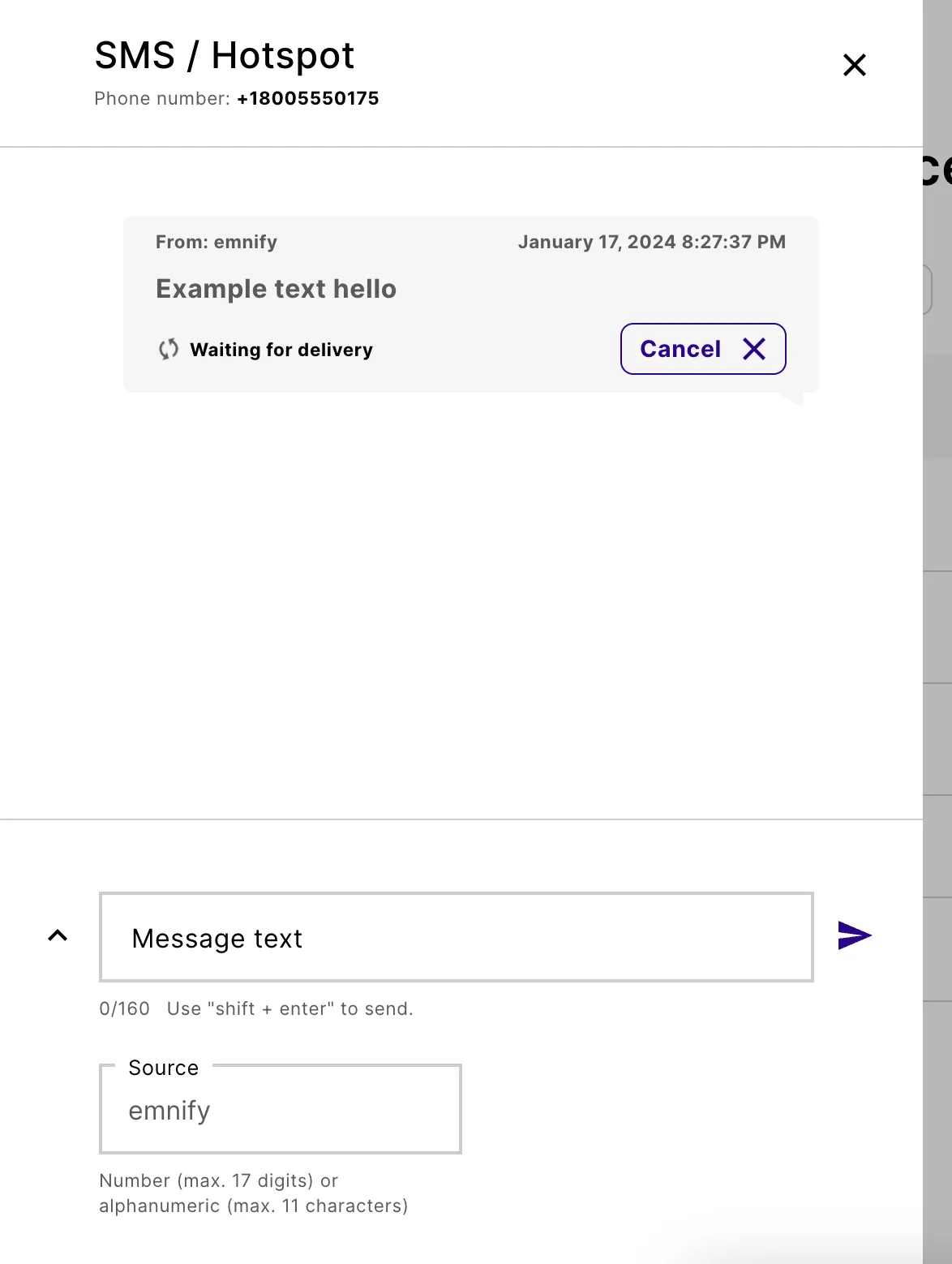
Write your message text, configure the Source, and then click Send (paper plane icon).

The SMS history and input field at the bottom of the SMS console is similar to the layout and features found in most mobile messaging apps.
Multiple devices in bulk

Selecting several devices on the Portal and simultaneously sending SMS is also possible.

1

Navigate to your Connected Devices.

2

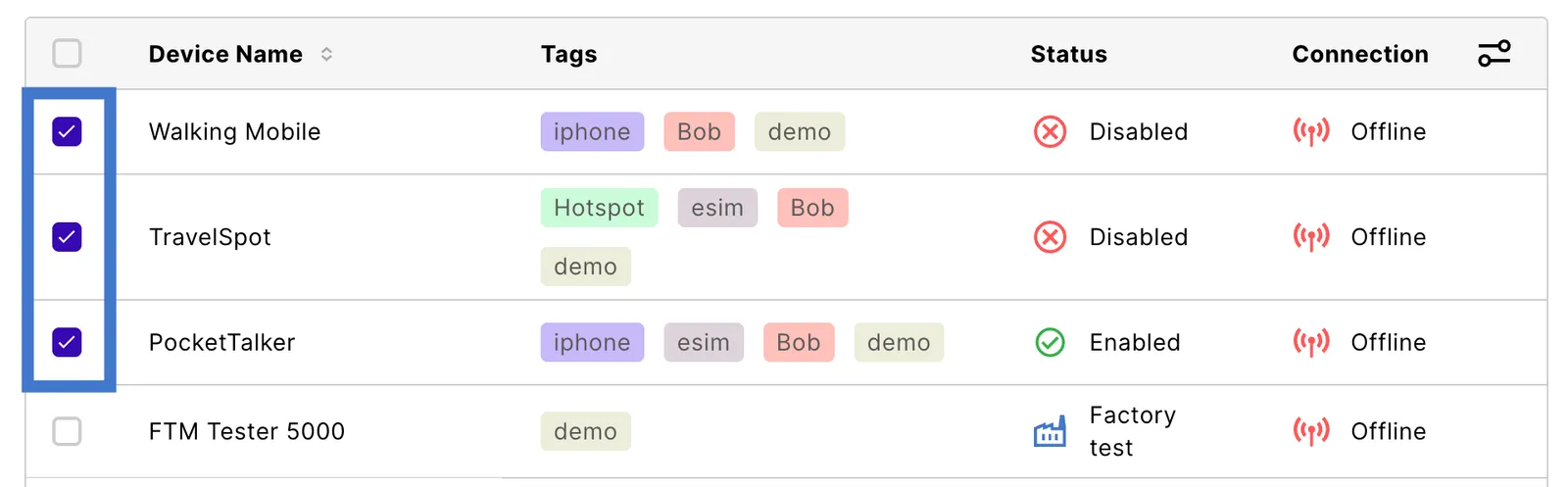
Search for the devices where you wish to block an operator and select the checkbox next to every relevant device.

3

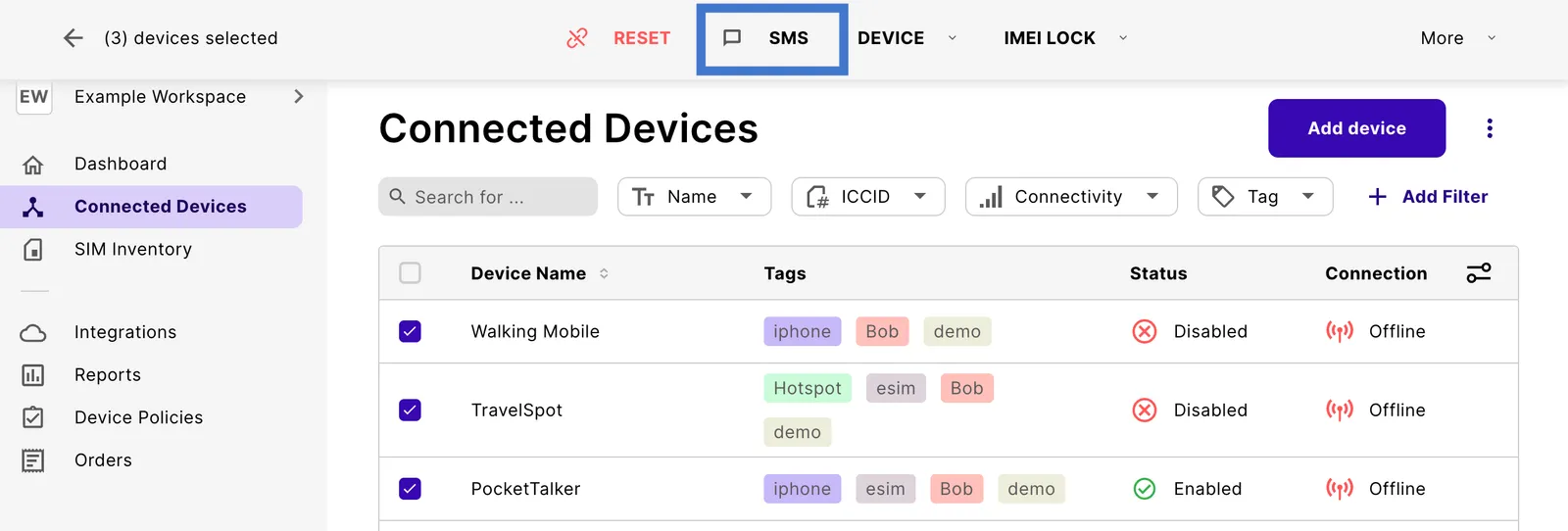
A new menu at the top of the page provides bulk operations. Select SMS.

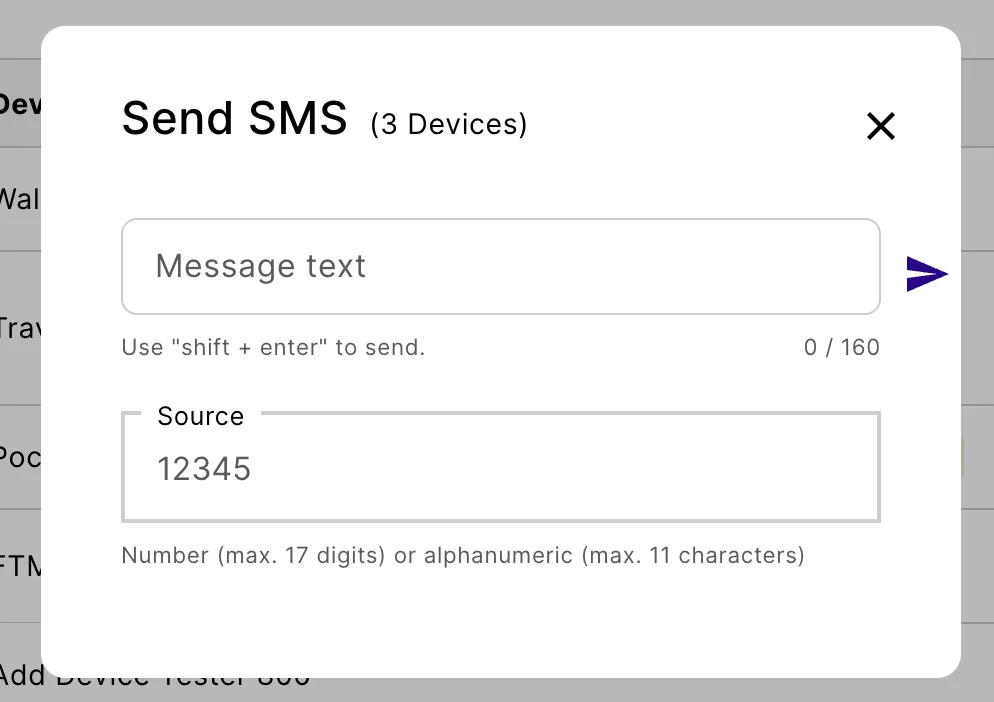
This SMS interface doesn’t show a history of messages. However, you receive a brief notification regarding the status of the SMS sent to the selected devices.