

Deploy the emnify Consumer eSIM Global on Omnissa Workspace ONE UEM
This guide explains how to deploy and activate the emnify Consumer eSIM Global using Omnissa Workspace ONE Unified Endpoint Management (UEM). It includes instructions for checking device compatibility, enrolling Apple devices, ordering eSIM profiles, assigning EIDs to eSIM profiles, activating them remotely through Workspace ONE UEM, and configuring the APN settings.
This process is tailored to enterprise environments using Apple devices with Workspace ONE UEM and Apple Business Manager.
Step 1: Check device and OS compatibility
Before proceeding, ensure that your devices meet the minimum system requirements for Workspace ONE UEM:
- Android: Supported on Android 15 and later (Workspace ONE UEM v2602). Custom DPC is required as the management type.
Bulk eSIM activation on Android requires the REST API. The UEM console does not support this operation.
For more information, see Managing Android Applications using Omnissa Workspace ONE UEM. - iOS: Supported on iOS 11.0 and higher.
For more information, see Introduction to Managing iOS Devices. - Browsers: For a list of supported browsers, refer to Working in the UEM Console.
Step 2: Enroll your devices in Workspace ONE UEM
Before activating the eSIM, devices must be enrolled in Workspace ONE UEM. Apple devices should first be registered in Apple Business Manager to use Automated Device Enrollment (ADE).
For devices in Apple Business Manager
Register devices in Apple Business Manager.
See Device deployment in Apple Business Manager for reference.
Enroll devices via ADE in Workspace ONE UEM
See Automated Device Enrollment in Omnissa MDM for integration instructions.
For devices not in Apple Business Manager
Install the Workspace ONE Intelligent Hub app from the App Store on each device.
Enroll your Apple device with Workspace ONE Intelligent Hub.
See Hub-Based Enrollment for requirements and instructions.
Integrate the Workspace ONE Intelligent Hub app with the Workspace ONE UEM.
See Workspace ONE Intelligent Hub for iOS for configuration details.
For assistance, contact your designated Omnissa Technical Account Manager.
Step 3: Order eSIM profiles
Order your eSIM profiles in the SIM Shop using the regular ordering of SIMs. Select the eSIM profile product and choose how many profiles you need.
emnify creates a device for each eSIM profile you order and assigns the profile to it. This happens for every eSIM profile order, whether the profile is provisioned on a Consumer (SGP.22) or Advanced (SGP.32) eUICC, and whichever installation method you choose.
Your eSIM profiles become available once the order status changes to Delivered.
At checkout, choose an eSIM profile installation method. This choice determines how you get each profile onto a device, and what the order download contains.
- I will use activation codes: you receive a QR code, universal link, or numeric code to install each profile.
- I will link profiles using the EID: you link profiles by entering device EIDs individually or in bulk.
The order download follows this choice. With activation codes, the CSV contains the ICCID, activation code, and Apple Universal Link for each profile. With EID linking, the CSV contains the ICCID only. QR code images are never included in an order download. Retrieve them per device from the eSIM tab in Connected Devices.
For this guide, select I will link profiles using the EID. The Omnissa flow uses EID assignment (Step 4) and the SM-DP+ URL (Step 5), not activation codes.
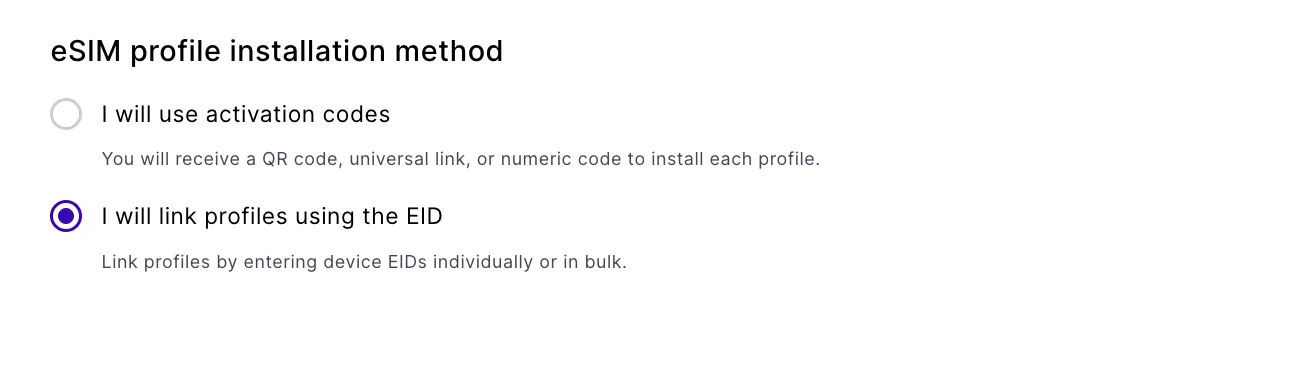
Not all MDMs can download a profile from a default SM-DP+ address. If you use a different MDM, check its documentation for compatibility before you select this option.
Step 4: Assign EIDs to your eSIM profiles
Before your MDM can download profiles to devices, you need to assign each device’s EID to an eSIM profile in the emnify Portal. Export the EIDs of your enrolled devices from your MDM, then assign them one at a time or in bulk from a CSV file.
For the full procedure, see Assign EIDs to eSIM profiles.
After the emnify SM-DP+ processes the assignment, the profiles move to Ready to download. Your MDM can download only profiles in Ready to download status.
Step 5: Activate your eSIM via Workspace ONE UEM
Before sending the activation command, make sure:
- Selected devices under the device list are ON, and
- Devices are connected to Wi-Fi or cellular
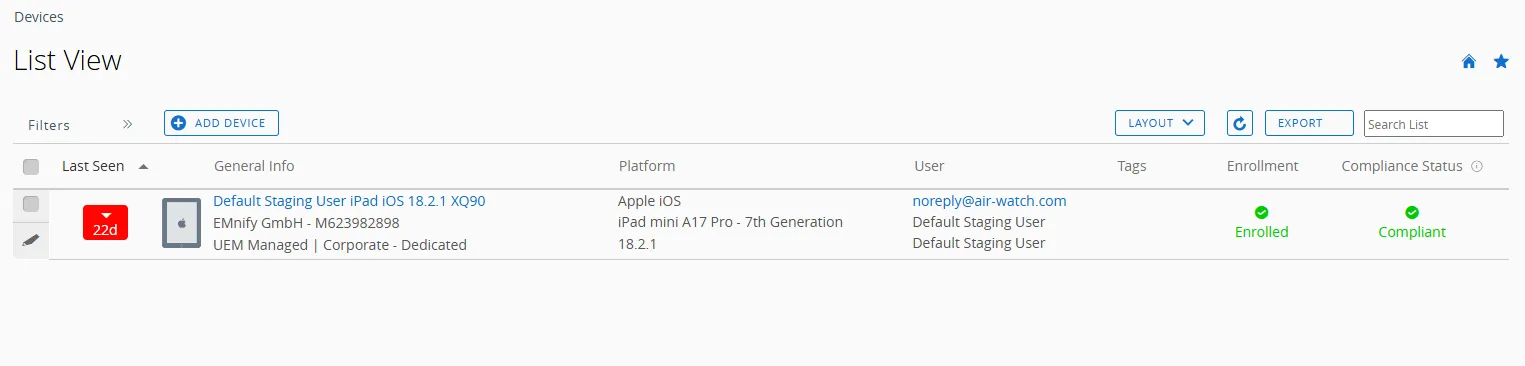
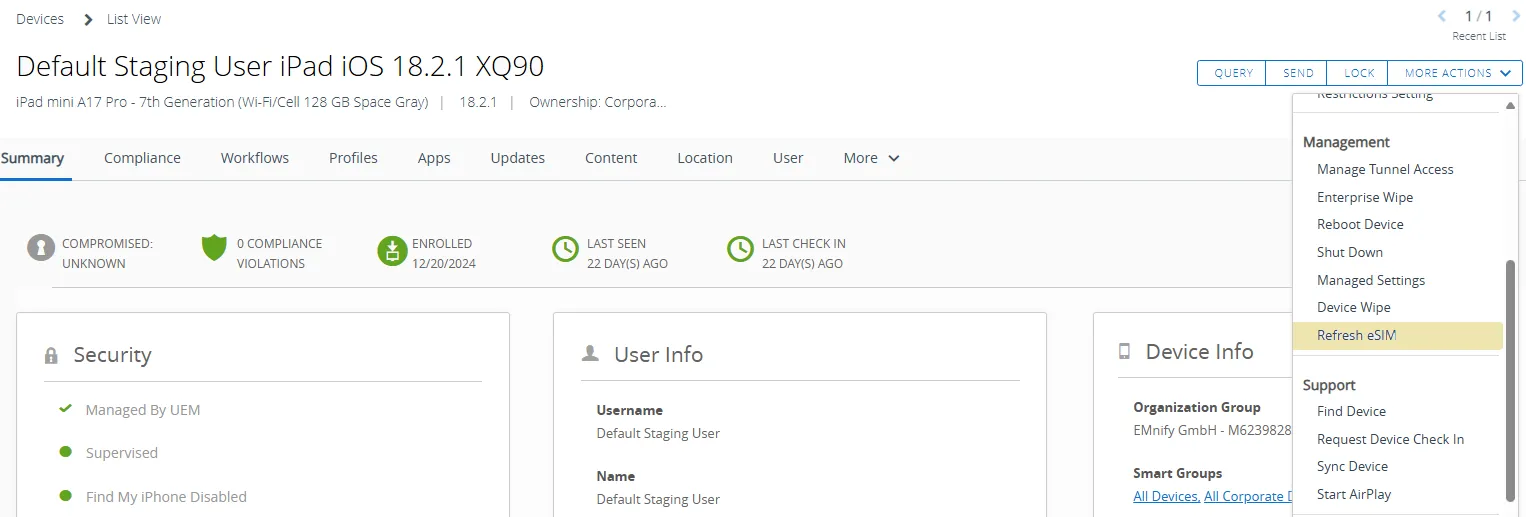
Activate a single eSIM

Activate multiple eSIMs in bulk
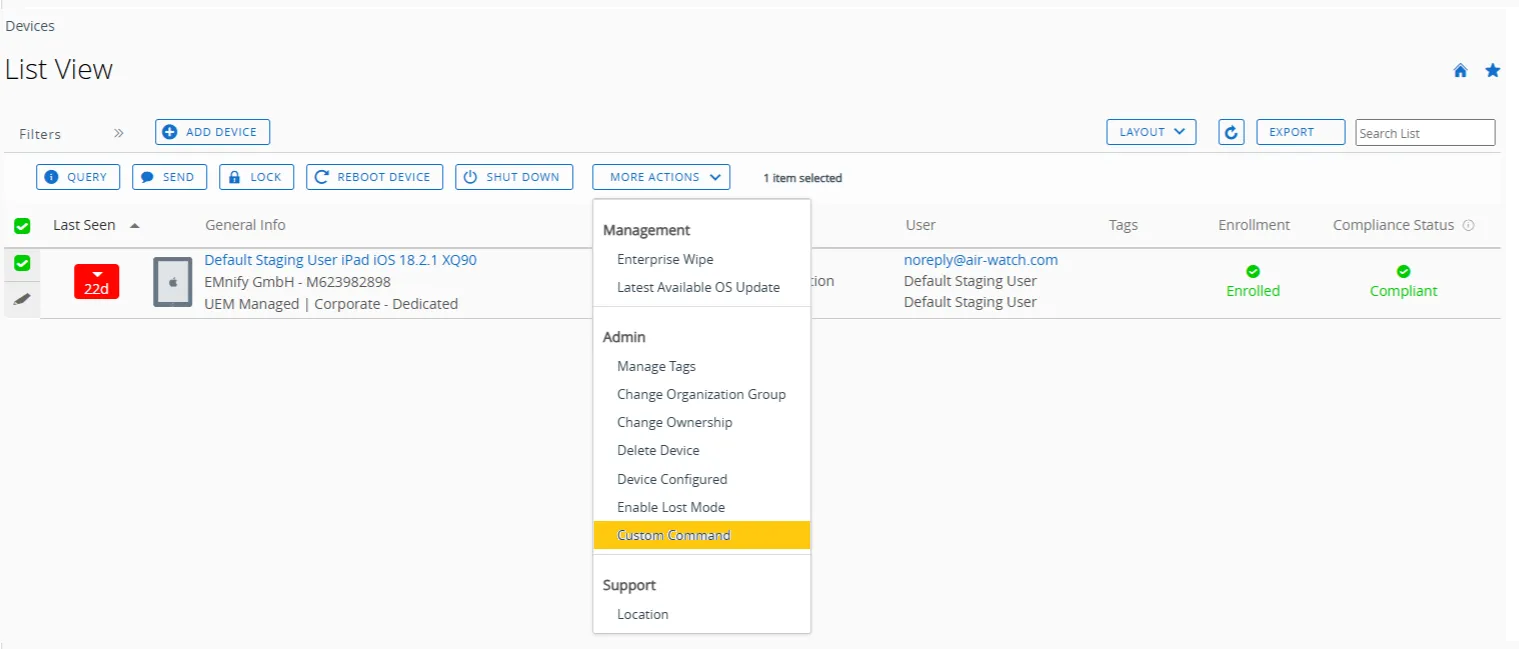
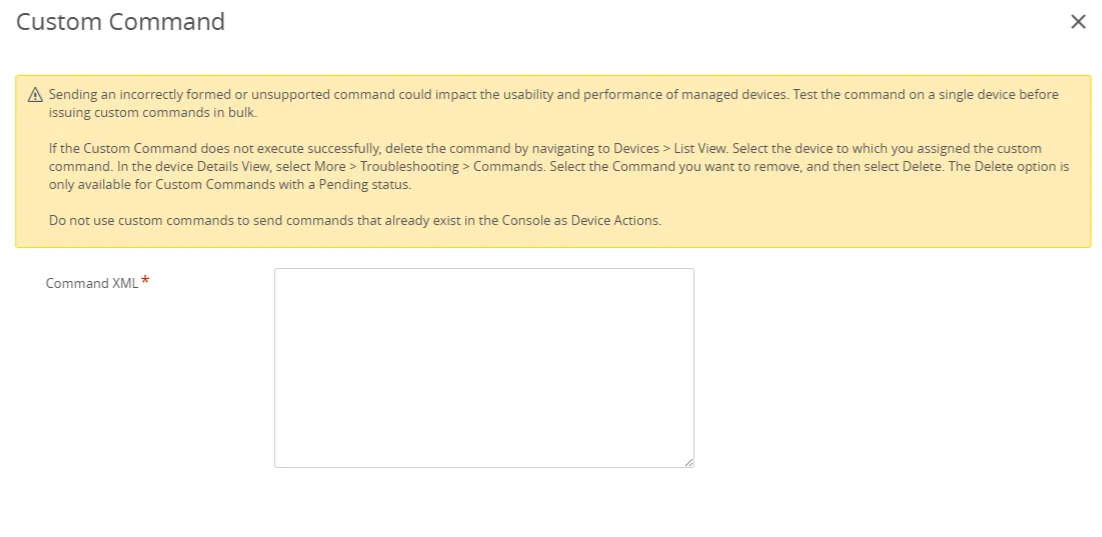
Most devices complete activation within 2-3 minutes of issuing the refresh command, assuming network connectivity is stable.
- Devices must remain powered on and connected to a network.
- You don’t need to take any action on the device.
Step 6: Configure the APN on the device
After activation, the Access Point Name (APN) must be set to em.
You can configure the APN:
- Manually on the device, or
- Remotely via Workspace ONE UEM
Remote APN configuration
For individual devices:
- Administrators can create and assign a Device Profile with the necessary APN setting.
- You can tailor this profile to specific device requirements and push it directly to the targeted device.
For multiple devices:
- Use Smart Groups to assign the APN profile at scale.
- All devices within that group receive the settings automatically.
- This approach ensures consistency and efficiency in large-scale deployments.
Platform support may vary. Available APN configuration options depend on the device’s operating system (for example, Android or iOS) and its management mode (for example, Work Managed or BYOD).
For detailed guidance on creating and deploying APN profiles, see Add a Device Profile in the Omnissa documentation.
Once the APN is set, the device establishes data connection. You can verify by browsing the internet or streaming videos.