

Advanced eSIM
The Advanced eSIM is emnify’s product name for the SGP.32 IoT eSIM. It supports the download of multiple eSIM profiles, allowing you to add and manage connectivity providers over the air.
Before you build at volume, check that your device supports what SGP.32 needs. See Prepare your device for Advanced eSIM.
Manage Advanced eSIM
In Connected Devices, find the SGP.32 device you want to manage.
Click anywhere on the device row to open the device details, then select the eSIM tab.
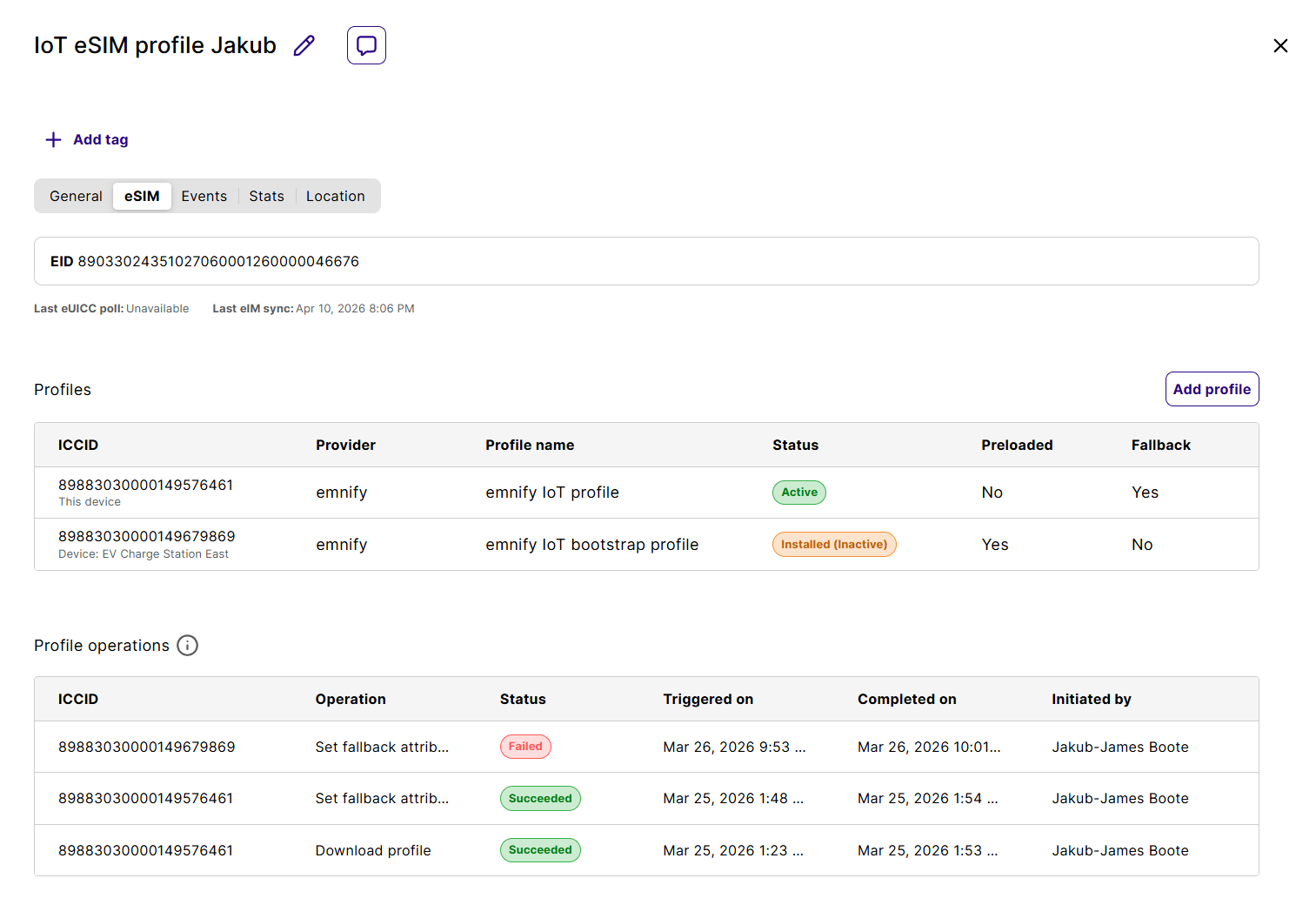
The eSIM tab displays:
- The EID (eUICC Identifier) of the embedded SIM
- The last eUICC poll time, which indicates when the eUICC checked with the emnify eIM for pending operations. By default, the eUICC polls the eIM with every device restart and every 24 hours.
- The last eIM sync timestamp, which indicates the last time the emnify platform synchronized states with the emnify eIM. Between synchronizations, eSIM profile statuses may not be accurate. The eIM synchronization happens every minute.
- A Profiles table listing all installed profiles with their ICCID, provider, profile name, activation status, and whether they are preloaded or set as fallback.
- A Profile operations log showing recent operations, their status, start and completion time, and who initiated the profile management operation. For more details about failed operations, you can also click the operation itself.
Add an eSIM profile
In the Profiles section, click Add profile. A dialog opens where you can configure the new profile.
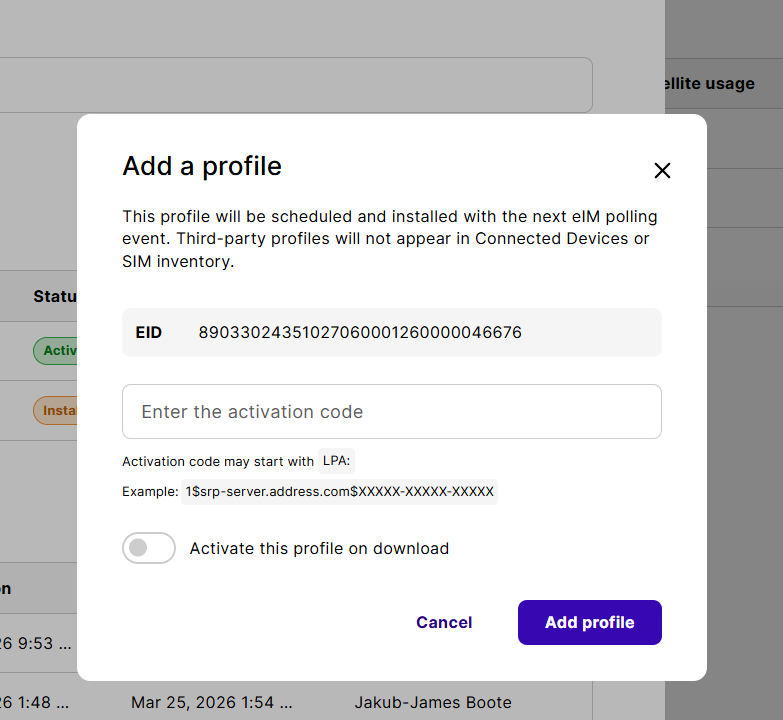
Get the activation code from the connectivity provider whose profile you want to download. You can activate the profile immediately, which deactivates the current one, or download it without activating to use it as a fallback profile later.
Profile management operations aren’t immediately applied. When you add a profile, you schedule an operation with the emnify platform and eIM. The eUICC executes the download the next time it connects to the eIM. You can track the download progress in the Profile operations log.
Not every eSIM profile can be downloaded onto an SGP.32 eSIM. Some connectivity providers offer different eSIM profiles for consumer and IoT use cases and block the download of consumer-type profiles to the SGP.32 SIM.
Activate a profile
Activating a profile switches the Advanced eSIM to use that profile for connectivity. Only one profile can be active at a time, so the currently active profile is deactivated.
The eSIM Profiles table shows all installed profiles. The currently active profile has an Active badge in the Status column.
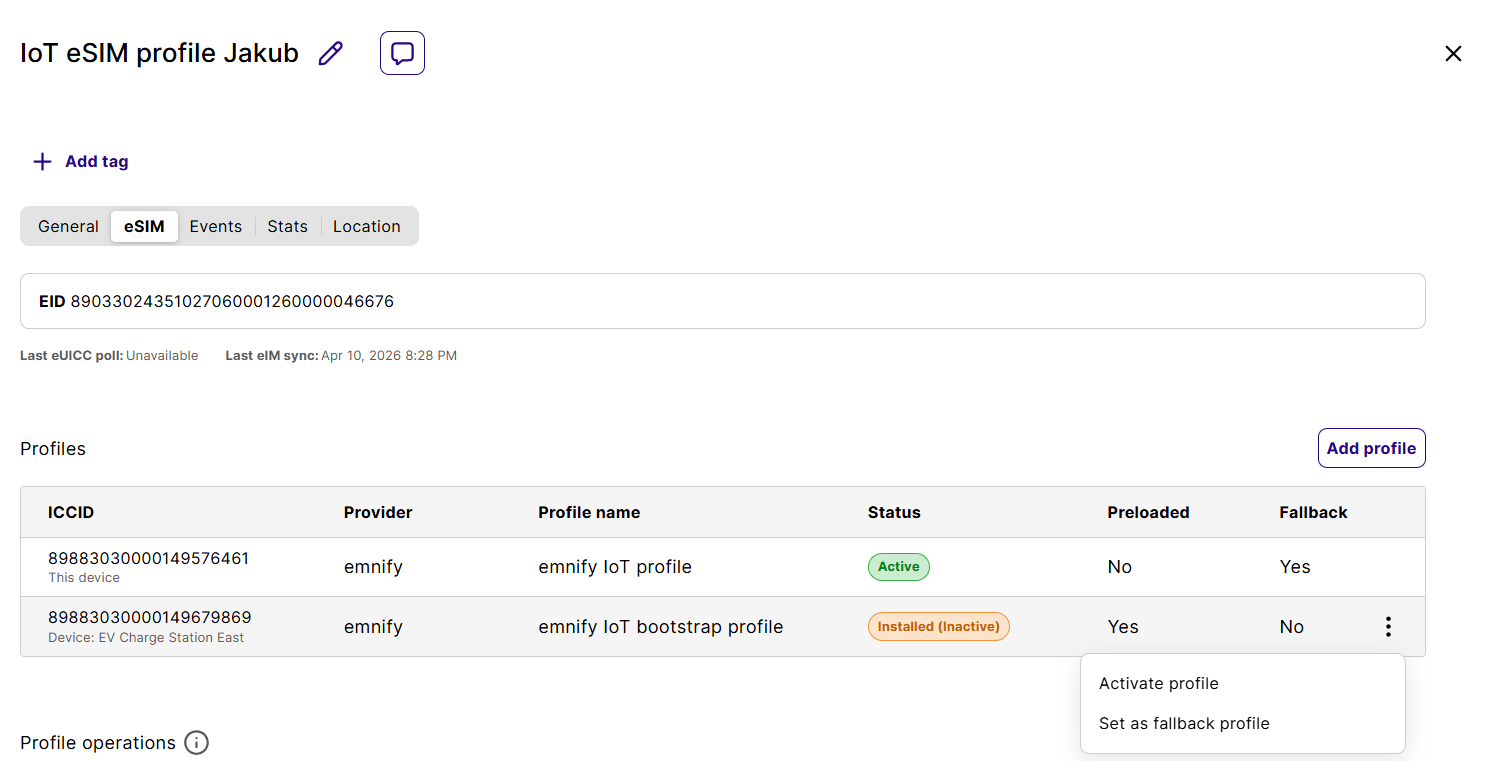
Find the profile you want to activate and open its actions menu by clicking the three-dot icon (⋮) in its row. Select Activate profile. An operation is scheduled to activate the specific profile. The next time the eUICC polls the emnify platform, the operation is executed.
If the newly downloaded eSIM doesn’t connect to a network, the device rolls back to the previous active profile after 10 minutes.
You can monitor the operation in the Profile operations log below the table.
Set a fallback profile
Every Advanced eSIM has a fallback applet installed. If you have at least two profiles on the eSIM, you can select one (and only one) inactive profile to be the fallback profile. Once the fallback applet detects that the primary profile can’t connect to an available network, it starts a timer (default 15 minutes) and then switches to the fallback profile.
Not every connectivity provider allows their eSIM profile to be set as a fallback profile. Ensure that the eSIM profile supports the fallback setting.
In Connected Devices, find the SGP.32 device you want to manage. Click anywhere on the device row to open the device details, then select the eSIM tab.
The Profiles table lists all installed profiles. The Fallback column shows which profile, if any, is currently designated as the fallback. In the Profiles table, find the profile you want to set as the fallback and open its actions menu by clicking the three-dot icon (⋮) in its row.
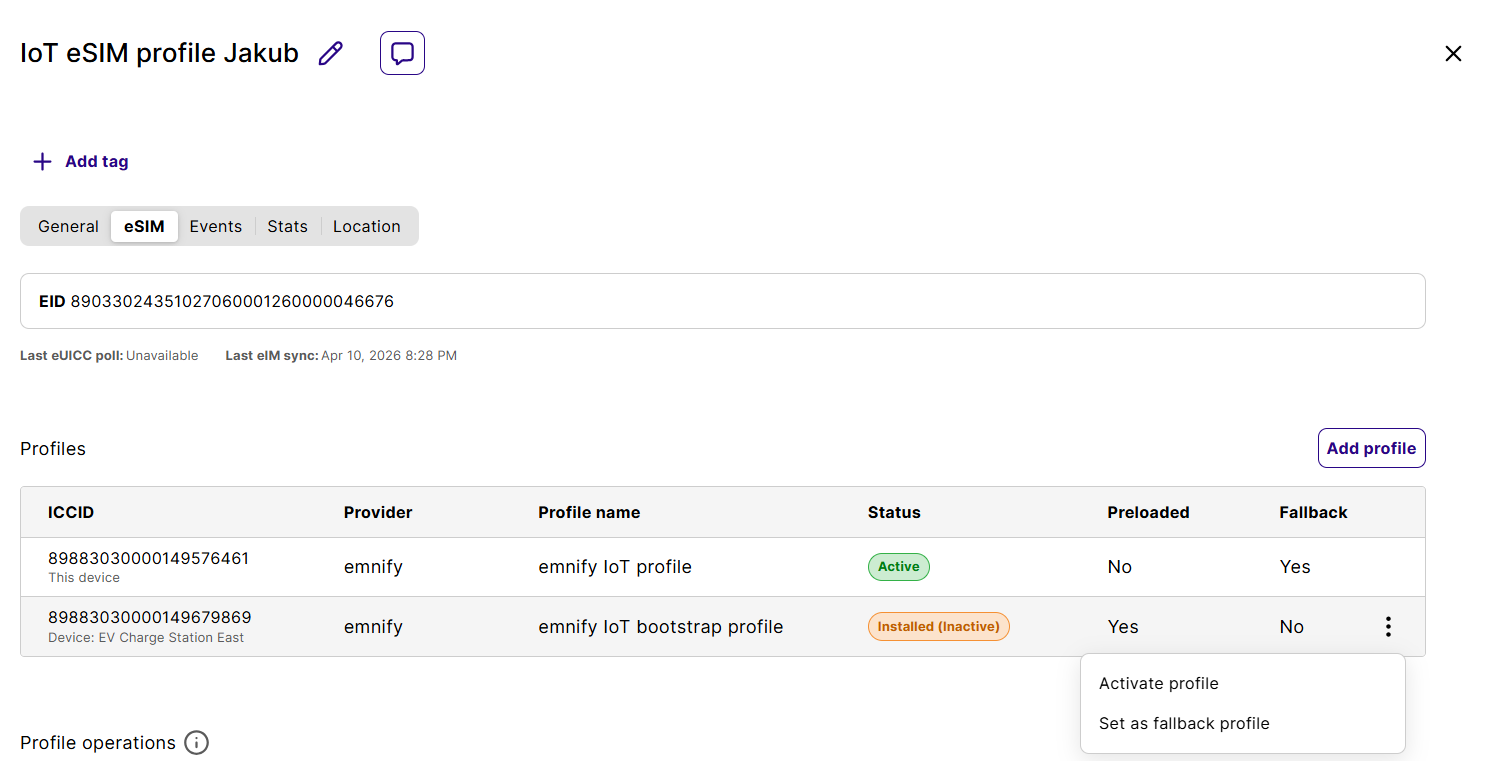
Select Set as fallback profile. This operation is scheduled on the platform and executed as soon as the eUICC polls the emnify eIM. If another profile was previously set as the fallback, that fallback attribute is removed.
Delete a profile
You can delete eSIM profiles from an SGP.32 Advanced eSIM device when they are no longer needed. This removes the profile from the device over the air. In the eSIM tab, the Profiles table lists all installed profiles on the device.
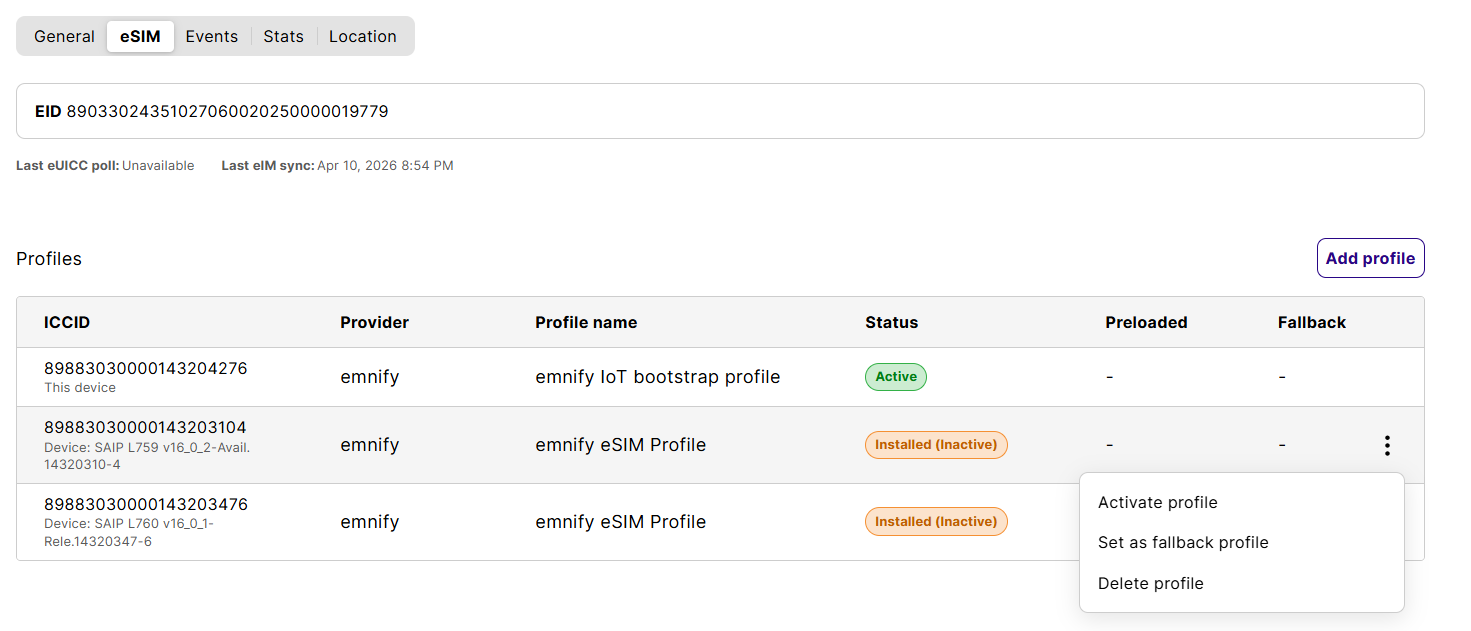
Find the inactive profile you want to delete and open its actions menu by clicking the three-dot icon (⋮) in its row. Select Delete profile. Confirm the deletion when prompted.
You can’t delete active profiles. This ensures that the eSIM isn’t permanently bricked due to the deletion of the active eSIM profile.
Order and activate your eSIM
Advanced eSIM and Consumer eSIM are ordered from the same adaptive SKU in the SIM Shop. The profile is provisioned on an Advanced (SGP.32) or Consumer (SGP.22) eUICC, depending on the device it’s installed on.
emnify creates a device for each profile you order and assigns the profile to it.
For small-scale deployments, you can activate the eSIM using a QR code, activation code, or Apple Universal Link. Retrieve your activation credentials from the Orders page (when the order status is Delivered) or from the device’s eSIM tab in Connected Devices.
For step-by-step activation instructions, see: