

Consumer eSIM
After purchasing an eSIM profile in the SIM Shop, emnify automatically creates virtual devices and assigns the eSIM profiles. To download the consumer eSIM to your actual devices, go to the Connected Devices table and click a device where an eSIM is assigned.
In the Connected Device details, click the eSIM tab.
Deployment via Mobile Device Management (MDM)
On this route you assign each device’s EID to an eSIM profile in advance.
That binds the profile to one specific device on the emnify SM-DP+.
Your MDM then downloads the profile by sending only the Remote SIM provisioning (RSP) URL https://rsp-3128.idemia.io, with no activation code.
Assign an EID from the eSIM tab of a Connected Device, or assign many at once from a CSV file. For the full procedure, including how to find the devices afterwards, see Assign EIDs to eSIM profiles.
For platform-specific instructions, refer to the individual MDM integration guides for Omnissa, Microsoft Intune, Jamf Pro, and Applivery. Other MDM solutions like IBM MaaS 360, Acceleronix, and ManageEngine also support this feature.
Only eSIM profiles in status Available are eligible for EID assignment. After the emnify SM-DP+ processes the assignment, a profile moves to Ready to download. Your MDM can download only profiles in that status.
If you assign the incorrect EID, you can unassign it from the device’s eSIM tab once the profile shows Ready to download. The profile returns to Available, ready for the correct EID, and you can repeat this cycle as often as you need. After a device downloads the profile, nobody can reassign it. Order a new profile instead.
Assign EIDs in bulk
If you have many devices to provision, you can assign EIDs to multiple eSIM profiles at once using a CSV file instead of assigning them one at a time. For the steps and the file limits, see Assign EIDs to eSIM profiles.
Deployment via QR code, activation code, and Apple Universal Link
Consumer eSIM and Advanced eSIM are ordered from the same adaptive SKU in the SIM Shop. The profile is provisioned on a Consumer (SGP.22) or Advanced (SGP.32) eUICC, depending on the device it’s installed on.
For small-scale deployments, you can activate the eSIM using a QR code, activation code, or Apple Universal Link. These activation methods work for both Consumer and Advanced eSIM profiles.
You can retrieve your activation credentials in two ways:
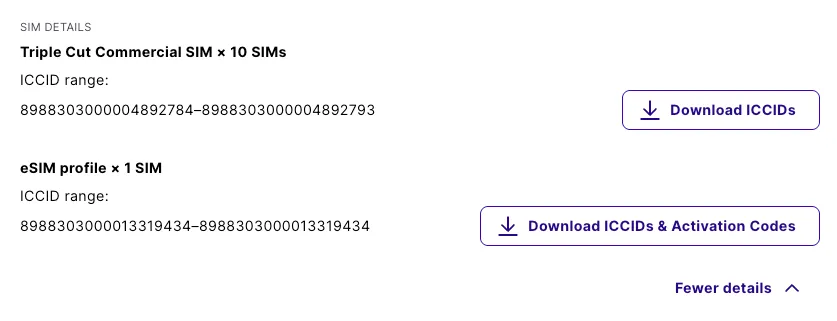
- From an order: When the order status is Delivered, open the order in the Orders page and download a CSV containing the ICCID, activation code, and Apple Universal Link for each profile. QR code images are not included in the CSV.
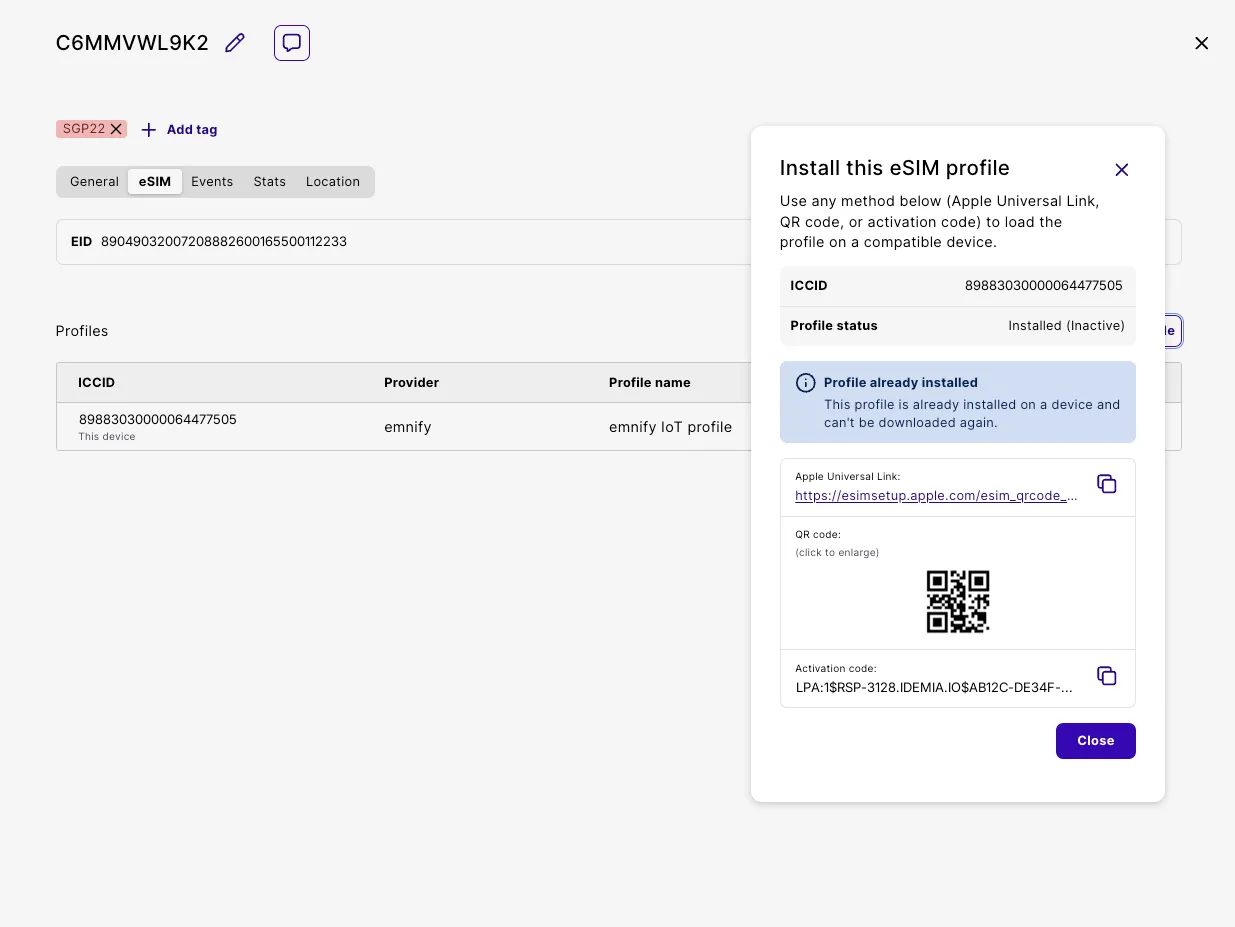
- From a device: In Connected Devices, open the device and select the eSIM tab to view the QR code, activation code, and Apple Universal Link for that device’s assigned profile.
For step-by-step activation instructions, see:
Only eSIM profiles in status Available can be associated with a device.